Formatting Screenshots
The document describes how you can add screenshots and supported hotkeys to make the operations faster.
Adding Screenshots
When you click the Log Defect button, a screenshot of the opened screen is taken automatically. You can also paste an image from the clipboard with Ctrl+V (for example, PrntScrn screenshot), drag and drop it into the widget, or load it with the select dialog by clicking on the open file icon.
Options available to add a screenshot to the screen:
Replace all: It will replace the existing screenshot with the new one.
Paste over: It will just paste the new screenshot over the existing one irrespective of size.
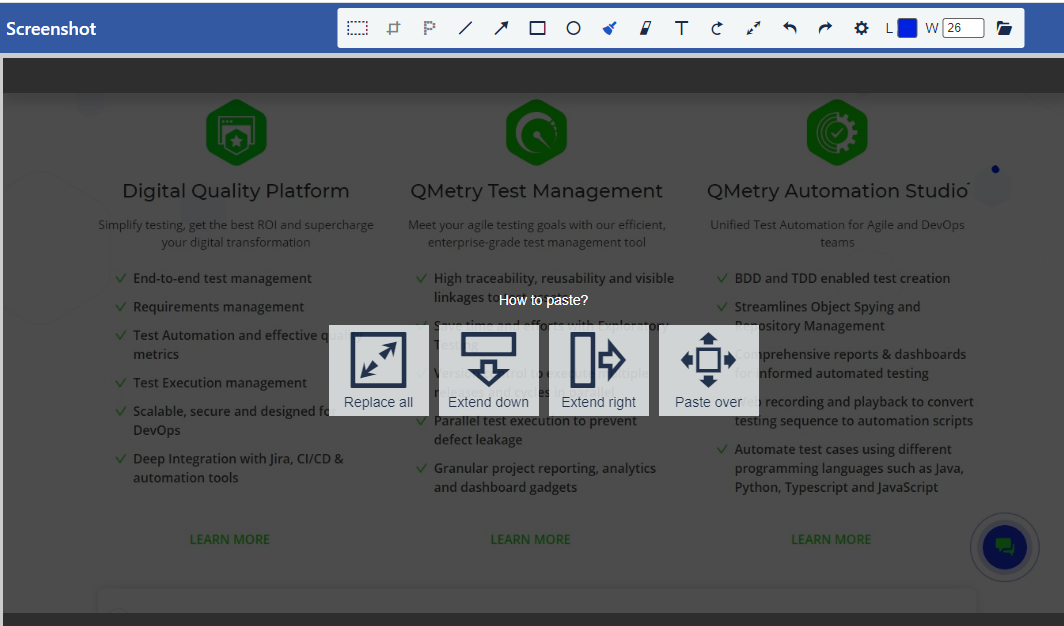
Extend down: It will place the new screenshot just below the existing one.
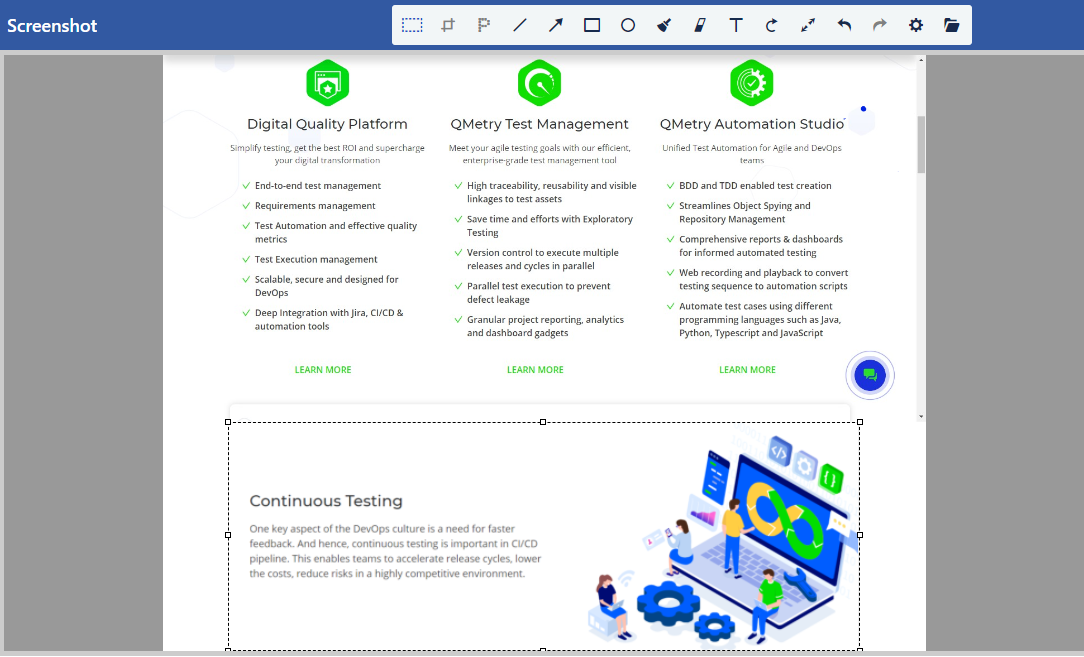
Extend right: It will place the new screenshot to the right of the existing one.
Features
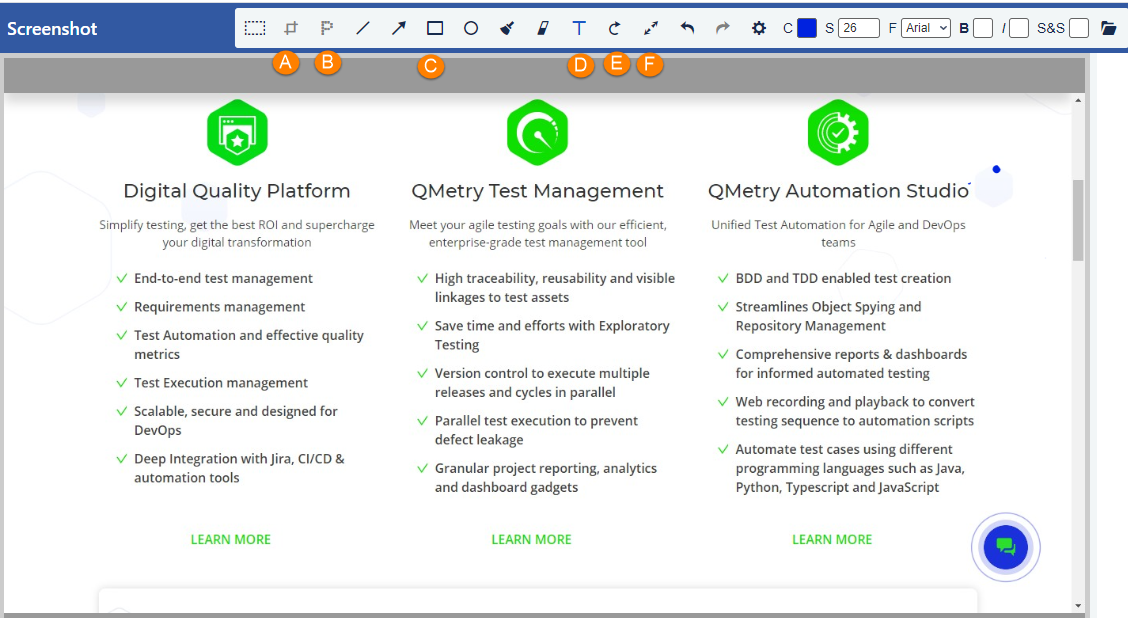
The editor provides the following features.
A. Crop image by defined area
B. Pixelize selected area to hide sensitive data
C. Paint primitives: line, arrows, rectangle, ellipse (alpha color can be used)
D. Add text (you can use Ctrl+B - bold, Ctrl+I - italic, Ctrl+U - underlined, or just pass formatted HTML)
E. Rotate image
F. Resize / scale image
Supported hotkeys
Keys | Description |
| Cancel last operation |
| Paste image from clipboard |
| Copy selected aria to clipboard (*internal keyboard) |
| Draw square/circle |
| draw at angles of |
| Hide zoom helper (colored grid) |
| Zoom image |
| Save image |