Export Test Cases to Other QMetry Instance
You can export QMetry test cases from one Jira instance to another Jira instance. This document describes how to export QMetry test cases to another QMetry for Jira instance.
Note
A maximum of 1000 test cases can be exported to other QMetry instances.
Pre-requisites
QMetry for Jira add-on should be installed on both source space instance and target space instances.
QMetry for Jira feature (from QMetry Space Settings in Space Settings) should be enabled for both source space instance and target space instance.
If the Permissions feature is enabled for the target space instance, the user must have the Import permission (from QMetry Permissions in Space Settings) for the space on the other QMetry for Jira instance.
Export Test Cases to Other QMetry for Jira Instance
Perform the following steps:
Source Space Instance
Go to Test Management and select Test Case.
Select test cases that you want to export to the space in other QMetry for the Jira instance. You can also narrow down the test case search by applying filters.
If the Display Test Cases of Sub Folder(s) option is enabled on the tree, then the screen at right will include test cases of the parent folder and its sub-folders. So make sure you select only the required test cases.
To select all test cases on the page, select the check box in the column header. To select all test cases across the pages, select the Select All Across Pages check box.
The options for Bulk Operation start displaying on the screen after selecting the test case(s).
Open the Export To drop-down list and select Export to Other Instance.
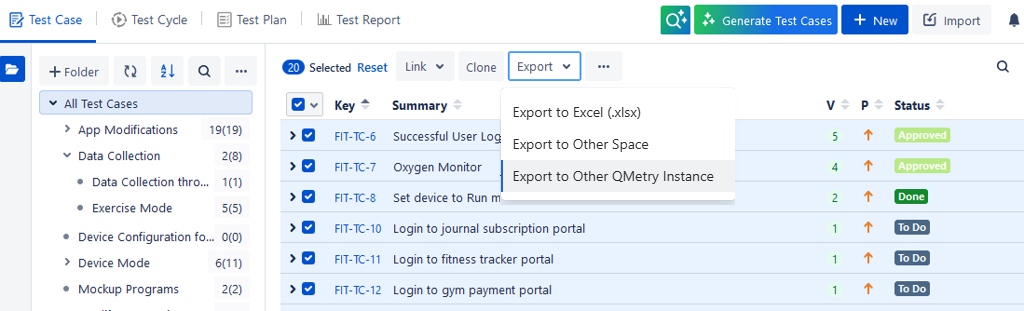
The Export to Other QMetry Instance dialog box appears.
There are three steps:
Authentication
Provide Additional Options to import test cases
Select Destination Space in the target QMetry for Jira instance
1. Authentication
Enter the following authentication details. You can proceed once the details are validated.
Note
Required Permission: Users authenticated in the target instance can perform this operation.
Email: Enter Email ID of the user who has import rights of in the target space in other QMetry Instance.
Base URL: Enter the URL of the other QMetry for Jira instance in which the test cases are being imported.
API Token: Enter API Token. Refer to Manage API tokens for your Atlassian account to know about how to generate API tokens.
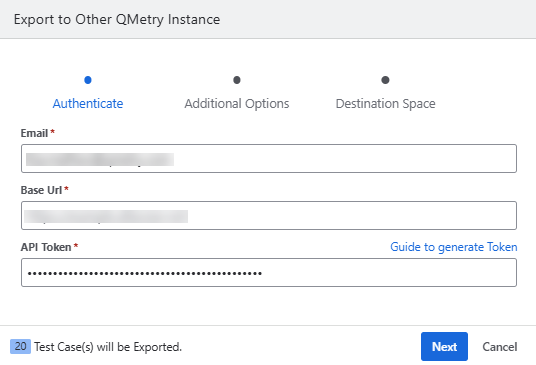
Click Next.
2. Additional Options
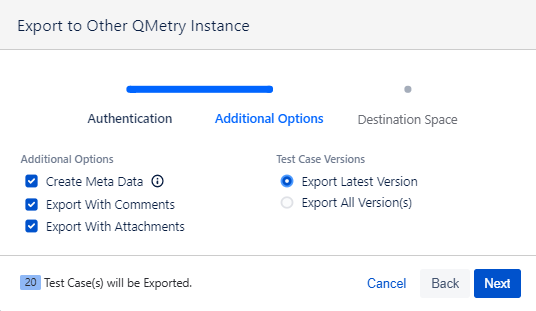
Select options that you like to copy from test cases during import:
Create Meta Data: If the field values (Label, Component, Status, Priority, Custom Fields, Data Parameters) are not present in the target space, then the system will create the mentioned metadata values in the target space. For Custom Fields, users should have access to modify/add custom fields. If the Create Meta Data option is not selected, then these fields will be ignored. Status and Priority will have default values in TO DO and Medium, respectively.
Comments: Select the check box to export Comments along with the other details of test cases.
Attachments: Select the check box to export Attachments along with the other details of test cases.
3. Destination Space
Select target Space: The drop-down list displays a list of spaces on the target QMetry instance. Select the space to which you want to export the test cases.
Select target Folder: The drop-down list displays a list of folders in accordance with the space selected above. Select the folder in which you want to export the test cases.
Update Metadata
Select Target Sprint: The drop-down list displays Sprints that exist in the target space, along with boards. Select the Sprint you want to attach to the test cases being imported in the target space.
Select Target Fix Versions: This option displays all Jira Fix Versions from the target space. Select the Fix Version to assign to the test cases imported into the target space.
Select target Assignee: Select the user from the drop-down list. This user will be assigned as the Assignee to the test cases in the destination space. If not selected, the current user will be assigned as the Assignee to the test cases.
Click Start Export.
Destination Space Instance
The test cases are imported into the Jira instance as per the configuration done in Step 3 above.