Import Project Settings from Configuration
QMetry Test Management for Jira allows admins to copy one space's configurations to another or import configurations into the current space. This saves time when manually duplicating existing settings.
Jira System Admin can select and copy Configurations, Permissions, and Space Settings from a source space to multiple target spaces in a single operation. This feature allows them to duplicate existing settings from the template space whenever a new space is created.
Space admin can select and import Configurations, Permissions, and Space Settings from a Source Space to their Current Space.
Feature Availability
You can copy or import the Space Settings from the following places in the application:
Feature Availability | Purpose |
|---|---|
Apps > Manage Apps > QTM4J > Global Settings > Copy Space Settings | For the Jira Admin to copy configuration settings to multiple spaces |
Apps > QMetry > Configuration > Import Space Settings | For the Space Admin to import configuration settings to the current space |
Note
Required Permissions: The following permissions are required to perform the copy and import Configuration operations.
Users Performing the copy operation must be part of the Group mentioned under Global Settings > General Configuration > Manage QTM4J Space Settings.
Users performing the import operation must have Space Jira Administrator permission of the target space or Product Administrator permission, the “Configuration View” permission of the source space, and the “Configuration View” and “Configuration Modify” permissions of the target space.
Business Rules
Only spaces that have the QMetry For Jira settings enabled will appear on the Source Space and Target Spaces list.
To copy permissions, the QMetry permissions should be enabled in the source space.
When copying configurations from Global Settings, the Admin can select a maximum of five target spaces at a time.
The copied permissions replace the existing permissions in the target space.
For Labels, Components, Priority, and Status, the new values will be merged with existing values in the target spaces.
System Fields: Mandatory settings will be copied.
Execution Result Settings: Sequence will not be copied and existing Custom Execution Status will be retained.
Custom fields and values: Fields and values will be copied along with the default and required settings to the target spaces only if they do not exist in the target space.
Archived values of system fields will not get copied.
Parameters: Parameters and values will be copied to the target spaces only if they do not exist in the target space. If a parameter already exists in the target space, the new values will be merged.
The Page Limit setting will not be copied to the target space as it is a user-specific setting.
Import Space Settings from Configuration
A Space Admin can import space settings from a source space to the current space. The Admin can also view the progress and status of the Copy operation. The required permissions are mentioned in the section above.
Perform the following steps to import space settings from another space to the current space:
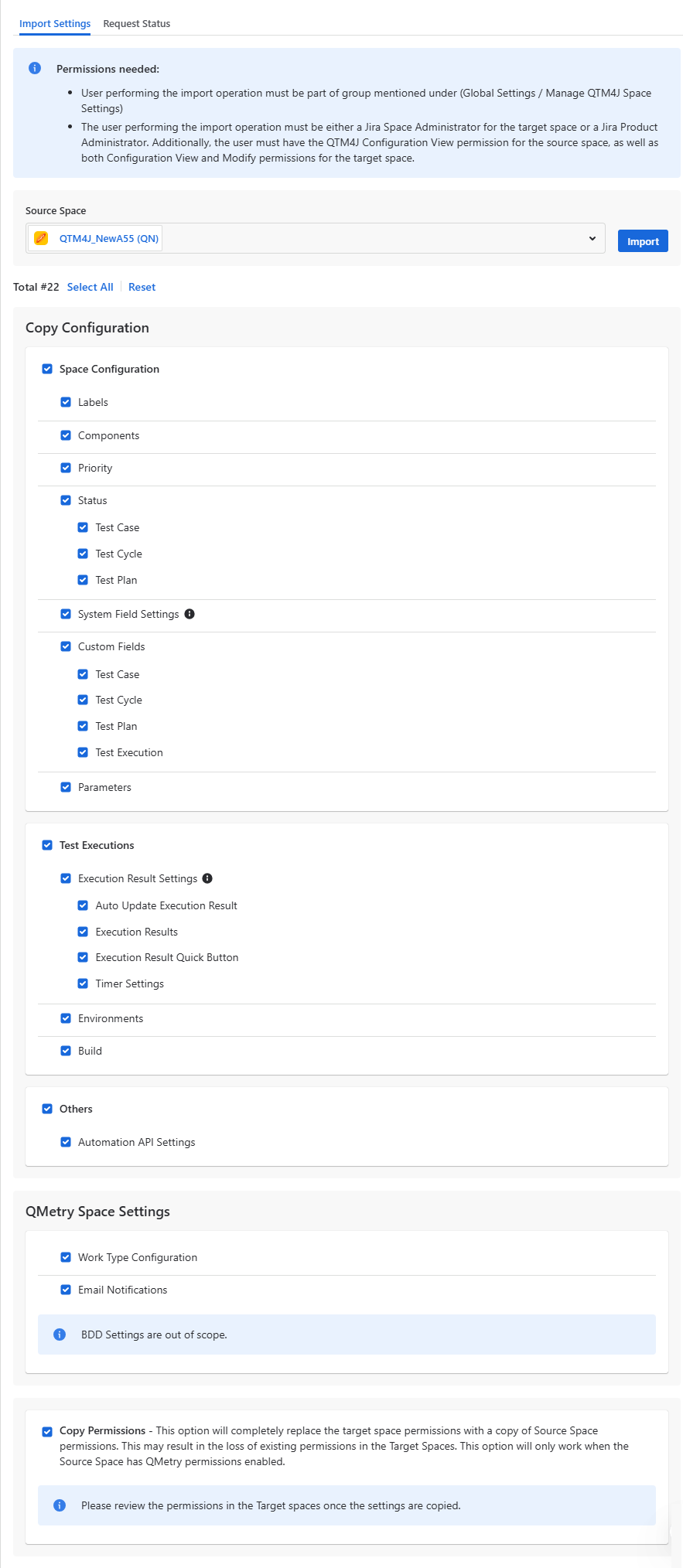
Click the QMetry menu, select Configuration, and select Import Settings.
Select the Import Settings tab.
Select Source Space: The list shows only QMetry QMetry-enabled spaces. Select the space whose Settings you want to import to the current space.
Select Configurations to Copy: Select the settings you want to import from the selected source space to the current space.
Note
Automation API API Settings will copy the settings for JUnit and TestNG.
The BDD settings are currently unavailable for copying from the source space. Since these repositories are specific to individual spaces, they may not be applicable across different spaces.
Copy Permissions: Selection of the Copy Permissions option under the QMetry Space Settings section will completely replace the current space permissions with the copy of Source Space Permissions. This may result in the loss of existing permissions in the current space. This option will only work when the Source Space has QMetry Permissions enabled.
If you are copying permissions, it is recommended that you review the permissions in the target spaces once the settings are copied.
Click the Import button adjacent to the space selection drop-down menu.
The confirmation message appears.
Click the Proceed button to start importing the space settings from the source space to the current space.
The success message appears.
View Request Status
Once you initiate the process of copying configuration, you can view the space-specific requests in the Request Status tab adjacent to the Import Settings tab. The tab shows details of Request Id, Source Space, Target Space, Requester, Processed On, and Status.
To view request details, hover over the record and click the View Details icon.
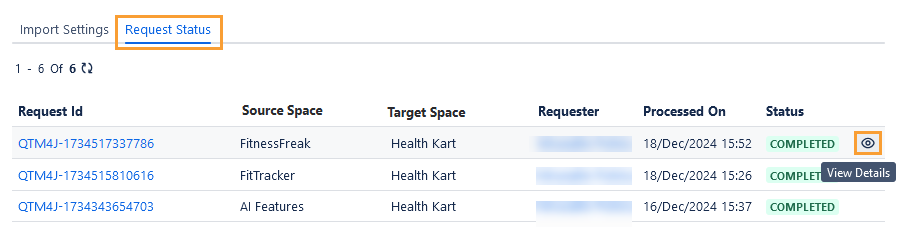
Click the Request Id to view the elaborated status of the individual settings imported from the source space to the target space and the reason for failure or error.
The following table depicts which Status will be shown in which scenario.
Status | Scenario |
|---|---|
Queued | When the copy tasks are lined up to be performed. |
In Progress | When the copy operation is still under process. |
Completed | When all the settings are copied successfully. |
Failed | When all the settings fail to be copied. |
Partially Completed | When some of the settings are copied successfully and some are failed to be copied. |
Audit Log for Import Space Settings
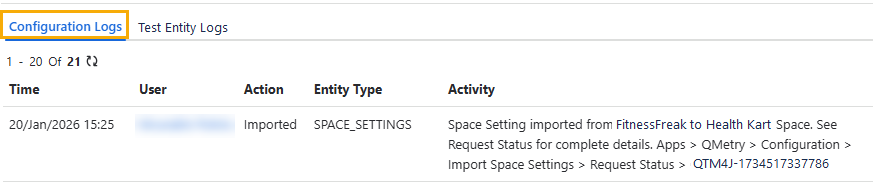
You can view the audit log of the Import Space Settings operation under Configuration > Audit Log > Configuration Logs tab of the current (target) space.
Copy Space Settings
Refer to Copy Project Settings for more details.