Enable QMetry Features for Jira Project
Note
Required Permission: Jira users with the Administer Project and Browse Projects permissions for the space can access QMetry Space Settings.
Configure QMetry for Jira
The QMetry for Jira settings are mandatory to start working on QMetry Test Management for Jira.
Important
For a team-managed space, if the Administrator does not have permission to the team-managed space (in case of private access), they will be unable to enable/disable the app.
Perform the following steps to configure QMetry for Jira:
Click the Spaces drop-down menu on the main menu and select the space to which you want to apply the QMetry settings.
Click the More Action icon beside the space and select Space Settings on the navigation bar.
Click Apps and select QMetry Settings on the navigation bar.
On the QMetry Space Settings screen, enable QMetry For Jira to start managing test cases.
Once you enable the QMetry For Jira option, you can view QMetry for Jira features in the space.
You can view the spaces categorized by QMetry-Enabled and mark the most frequently used or favorite spaces with an asterisk. These spaces are grouped as starred spaces. The grouping displays spaces in a distinguishable and easy to perceive manner.
Once you enable the settings to view only QMetry-enabled spaces and favorites, it remains consistent across the product and screens.
To view only QMetry-enabled spaces on the list, enable the Show Only QMetry Enabled option on the spacess drop-down list.
The list shows only QMetry-enabled spaces.
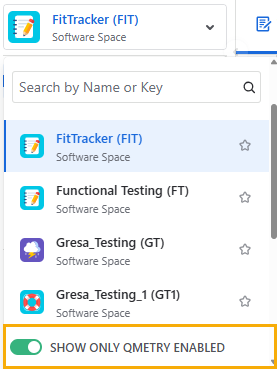
You can also add space(s) to the Starred group by marking the asterisk.
Enable Work Types for Story and Bug
The section becomes visible when you enable the QMetry For Jira option. You can configure Story and Bug Work Types for particular work types in Jira. Selected work types will be considered as Story or Bug.
For example, Story and Epic are marked as Story work types in Jira, so issues of these types can be linked as Story in QMetry for Jira. In the same way, you can enable work types for Bug.
This configuration at the Work Type level is applicable to a particular space in Jira.
Note
Jira users with the Administer Project and Browse Projects permissions for the space can access QMetry Settings and configure QMetry for Jira features at the Work Type level.
If enabled, the QMetry for Jira features will be available to use with that particular Work Type in Jira. The Test Case/Acceptance Criteria panel will be visible below the Description section.
Perform the following steps to configure the work type for Story or Bug:
Click the Spaces drop-down menu on the main menu and select the Space to which you want to apply the QMetry settings.
Select the Space Settings on the navigation bar.
On the Space settings page, select the QMetry Space Settings on the navigation bar.
On the QMetry Space Settings screen, enable QMetry For Jira to start managing test cases.
The section becomes visible when you enable the QMetry For Jira option. You can configure Story and Bug Work Types for particular work types in Jira.
This configuration at the Work Type level is applicable to a particular space in Jira.
You can see the Work Type, BDD, and Email Notification tabs on the screen.
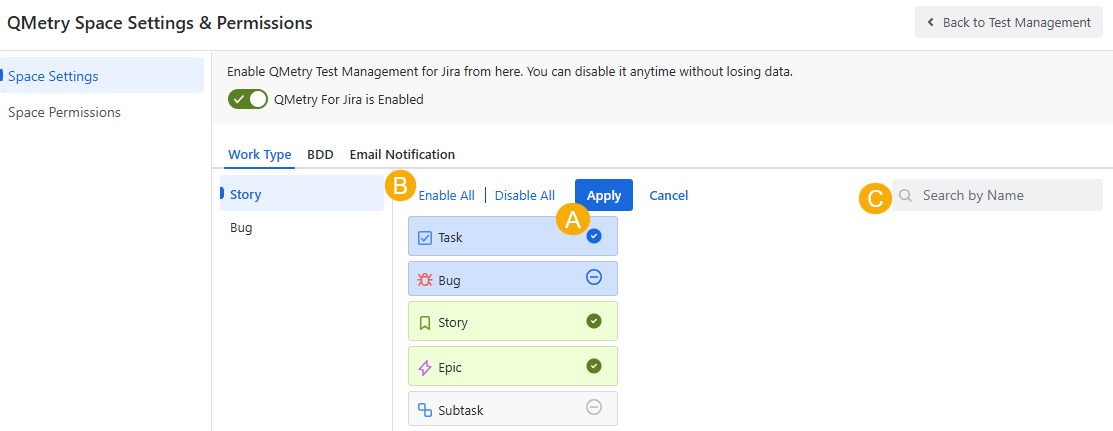
Story: You can link only those work types as Story which are configured here. QMetry 'Test Case/Acceptance Criteria' panel will be available for the configuered work type(s) only.
By default, all work types will be enabled. Select the work type(s) that you want to disable for Story and click on the Apply Changes button.
A. You can select individual work types by clicking on the adjacent icon.
B. Select or deselect all work types at once by clicking on Enable All or Disable All option.
C. If there is a long list of work types, you can also search for a specific work type with the help of a search box.
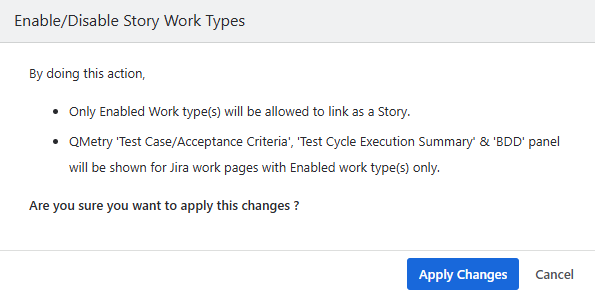
The confirmation dialog box appears.
Refer to the effects of configuration:
Only Enabled work types will be allowed to link as a Bug.
QMetry Test Case/Acceptance Criteria panel will be shown for Jira work pages with enabled work types only.
Click Apply Changes to proceed.
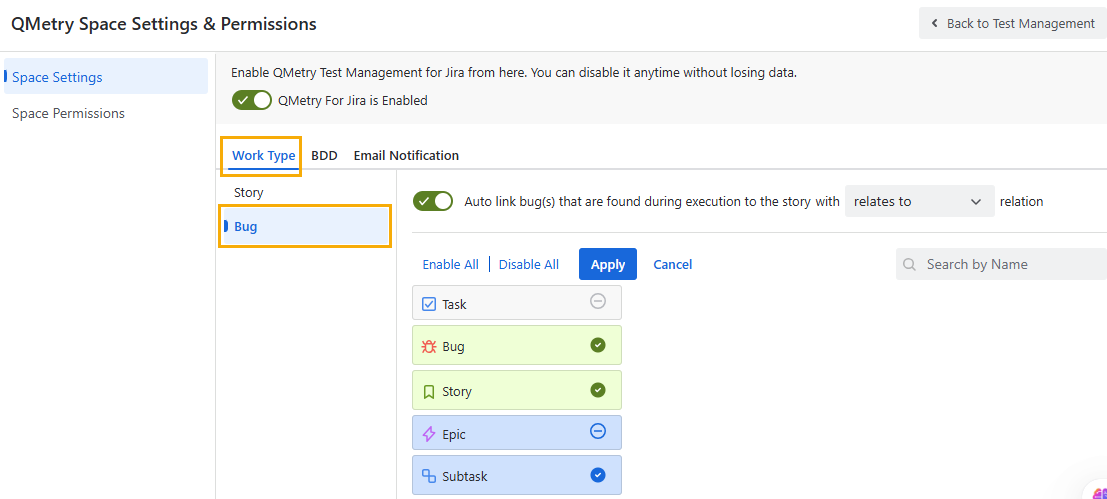
Bug: You can link only those work types as Bug which are enabled here. QMetry 'Traceability/Test Case' panel will be available for enabled work type(s) only.
By default, all work types will be configured. Select the work type(s) that you want to disable for Bug and click on the Apply Changes button.
A. You can select individual work types by clicking on the adjacent icon.
B. Select/deselect all work types at once by clicking on the Enable All/Disable All option.
C. If there is a long list of work types, you can also search for a specific work type with the help of a search box.
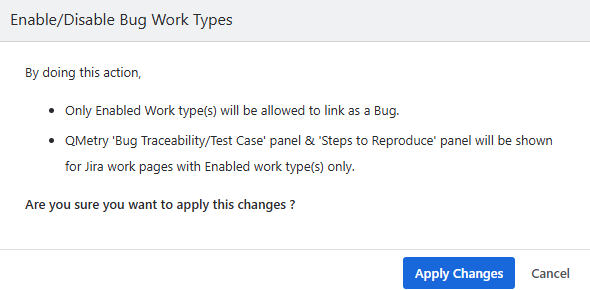
The confirmation screen appears.
Refer to the effects of configuration:
Only enabled work types will be allowed to link as a Bug.
QMetry Bug Traceability/Test Case panel will be shown for Jira work pages with enabled work types only.
Click on the Apply Changes button to proceed.
Once enabled, the QMetry for Jira features will be available to use in the corresponding work types in Jira. The Test Case/Acceptance Criteria panel is displayed below the Description section.
Disable Work Types for Story and Bug
The screen displays the list of Work Types with flags indicating whether the QMetry for Jira features is “Enabled” or “Disabled” for each Work Type. It is a toggle option to enable or disable the feature.
If you disable the work type for Story or Bug, users will not be allowed to link the disabled work type as Story or Bug. The QMetry for Jira features will not be available for that particular Work Type in Jira.
To disable the QMetry for Jira Features for a particular Work Type, click the enabled icon, and then click Apply Changes.
Click Disable after reading the message.
The QMetry for Jira Features option is disabled for the Work Type.
The Test Case/Acceptance Criteria pane will not be visible in Jira.
If the Work Type is Bug, then the Traceability tab will not be available in Jira.
Auto-link Execution Bugs to Stories
An administrator can configure the option to auto-link bug(s) found during execution to the story with a specific relation. If the option is enabled, bugs logged during test case execution get automatically linked to the Jira story associated with the corresponding test case. You can see the bugs in the Linked Issues section of the Jira story as per the relation defined in the configuration in Space Settings.
For example, it is customary for the QA team and Managers to thoroughly assess all the bugs associated with the executed stories and ascertain the resolution while marking the Story progress as Done. To facilitate this, it is of utmost importance to establish bug traceability for the stories identified during execution, allowing all QA teams to review them during sprint closure or triage discussions.
Once the settings are switched on, the newly created/linked bugs will be associated with the story.
Note
Required Permissions:
Browse project permission
Link Issues permission
Issue-level security permission (Only if issue security schemes are configured in Jira)
Note
Admin can configure settings to enable or disable auto-linking of bugs to the story. The option remains enabled by default for new spaces.
Admin can also choose the relation of the bug with the Jira Story. The default relation is “Relates to”.
If the same bug is logged from different test cases that are linked to the same story, the bug will be linked only once to the story under one relationship.
If the relation is changed under the Auto link configuration in Space Settings, then the bugs logged after that will be linked to the story under that changed relation.
If an individual bug is linked with the test case execution and test step execution, the bug will be linked only once to the story.
If a bug is unlinked from the test case/test step execution or the test case association with the story is removed afterward, the bug linkage with the Jira story will remain as it is.
The Linked Issues section on the Jira Story detail page displays the bugs logged while execution.