QMetry For Jira Test Management Plugin 3.3 and below
About the Plugin
QMetry Test Management for JIRA plugin for Jenkins has been designed to seamlessly integrate your CI/CD pipeline with QMetry.
Easily configure Jenkins to submit your test results to QMetry without needing to write any code or deal with REST API. Your Test Results could be from any automation framework like Cucumber, TestNG, JUnit, QAF, and more.
For more info visit QMetry Test Management for JIRA.
Note
Prerequisites:
QMetry Test Management for JIRA installed in Server/Data Center or Cloud
Jenkins installation
Configuring a Standard Jenkins job
Freestyle
Perform the following steps to create a standard Freestyle job in Jenkins:
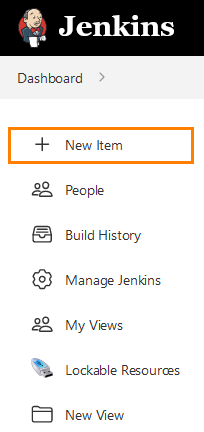
To create a new Jenkins job, click on the New Item option on the Jenkins menu.
Provide a name for your job.
Select Freestyle project on the screen and then click OK.
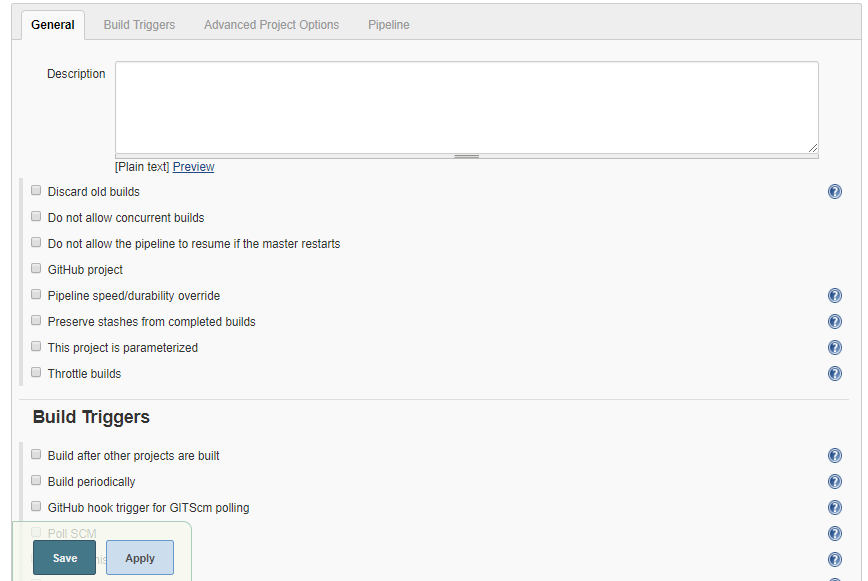
The configuration page appears where you can configure your job by various categories: General, Source Code Management (SCM), Build Triggers, Build, and Post build actions.
On the Source Code Management tab, select the appropriate option in which you have your source code. For example, here it is Git. So, select Git and provide the necessary information. (Note: You need to configure GitHub plugin in global configuration).
Set Build Triggers (this is an optional step). Select the Build Triggers tab. Let’s just add a periodic trigger which triggers build every minute – every hour – every day (Schedule: * * * * *).
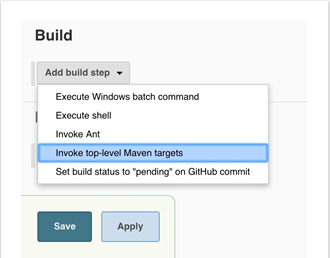
Select a build step. Select from various options: Ant, Maven, Windows batch process, etc. For example, for a maven project, trigger a maven build and specify goals.
Next step is to add Post-build Actions. Here, add the plugin: QMetry Test Management for JIRA Plugin.
Configuring QMetry for JIRA Test Management Plugin as a Post-build Action
Jenkins works as a bridge between QMetry Test Management and the JIRA plugin. To publish results in QMetry for JIRA, define another post-build action.
Perform the following steps to configure the plugin as a post-build action:
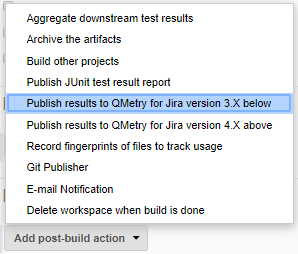
On the Add post-build Actions drop-down, select the Publish test result to QMetry for JIRA option.
There are two options: Cloud or Server. Based on the type of JIRA instance you have, select either JIRA Cloud or JIRA Server.
In case of Cloud instance for QMetry for JIRA, select the Cloud option and fill in the required data.
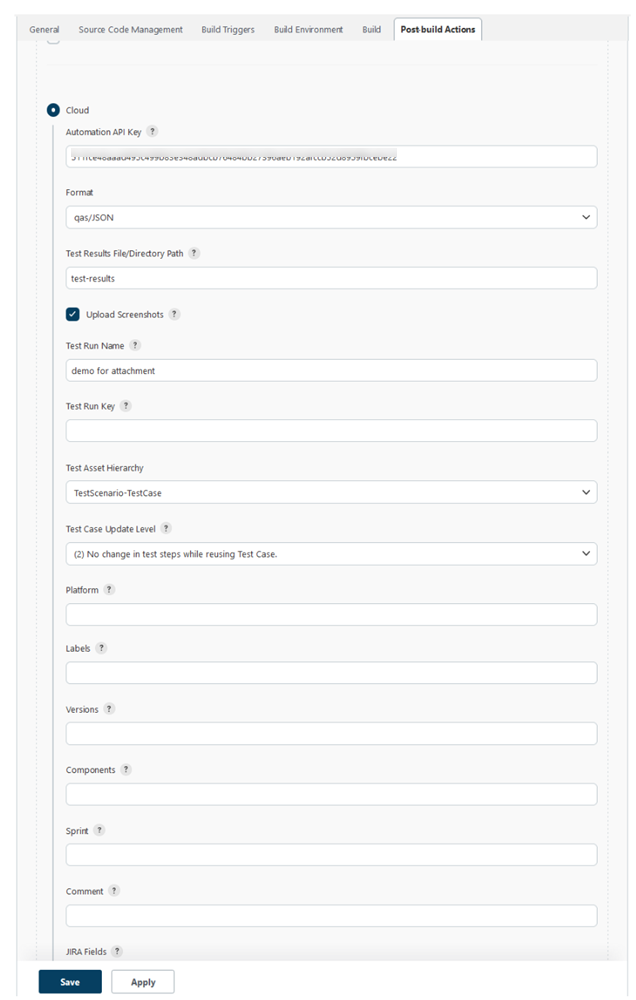
You can get more information regarding fields by clicking on the Help icon for the respective fields. It explains what to enter in that particular field.
Parameters for Cloud instance
Parameter | Type | Required | Description |
Automation API Key | string | Yes | Your API Key. API Key is unique for a specific user in a single project. The result will be imported for the project associated with the given API Key. |
Format | selection | Yes | Format of result file to be imported. Supported formats: cucumber/json testng/xml junit/xml qas/json hpuft/xml specflow/json |
File URL | string | Yes | Path to your result file to be uploaded. Example: The Jenkins plugin is expecting the file in Jenkins Workspace. If your workspace name is WithoutSouceCode, then you will find a folder name with WithoutSouceCode in your installation directory like Jenkins/Home/workspace/WithoutSouceCode. Your result file should be under Jenkins/Home/workspace/WithoutSouceCode/Testng-result.xml. The path that should be set in plugin configuration is |
Upload Screenshots | checkbox | No | Check to upload attachments in execution. Default value: false. |
Test Run Name | string | No | Name of the test run to be created. It will be appended with the Jenkins build Number. |
Test Run Key | string | No | Existing Issue Key of Test Run. Test run will be appended with the test case and executions. |
Test Asset Hierarchy | selection | Level of Hierarchy: Test Scenario-Test Case Or Test Case-Test Step | |
TestCaseUpdateLevel | selection | No | Test Case update level while reusing test case, starts from 0 to 2. (This is only applicable when you use TestCase-TestStep Hierarchy option) 0 Append test steps while reusing Test Case. 1 Override test steps while reusing Test Case. 2 No change in test steps while reusing Test Case. Default :- No change in test steps while reusing Test Case. |
Platform | string | No | Name of Platform on which test run to be executed. |
Labels | string | No | Comma separated names of Labels to be added to the test run. |
Versions | string | No | Comma separated names of versions to be added to the test run. |
Components | string | No | Comma separated names of Components to be added to the test run. |
Sprint | string | No | Name of theSprint to be added to the test run. |
Comment | string | No | Comment to be added to the test run. |
JIRAFields |
| No | Check specific Automation custom fields possible value and format described in the Jira Field section. |
In case of Server instance for QMetry for JIRA, select the Server option and fill in the required data.
Parameters for Server instance
Parameter | Type | Required | Description |
JIRA URL | string | Yes | Enter JIRA URL |
Basic Authentication OR Personal Access Token | string | Yes | Basic Authentication Basic authentication with Jira's credentials.
|
Personal Access Token If the Allow basic authentication on API calls option is disabled in Jira, then Personal Access Token is required for authentication. To generate personal access token, perform the following steps:
| |||
Automation API Key | string | Yes | Your API Key. API Key is unique for a specific user in a single project. The result will be imported for the project associated with the given API Key. |
Username | string | Yes | JIRA Username |
Password | string | Yes | Password for JIRA instance. |
Format | selection | Yes | Format of result file to be imported. Supported formats: cucumber/json testng/xml junit/xml qas/json hpuft/xml specflow/json |
File URL | string | Yes | Path to your result file to be uploaded. Example: The Jenkins plugin is expecting the file in Jenkins Workspace. If your workspace name is WithoutSouceCode, then you will find a folder name with WithoutSouceCode in your installation directory like Jenkins/Home/workspace/WithoutSouceCode. Your result file should be under Jenkins/Home/workspace/WithoutSouceCode/Testng-result.xml. The path that should be set in plugin configuration is |
Upload Screenshots | checkbox | No | Check to upload attachments in execution. Default value: false. |
Test Run Name | string | No | Name of the test run to be created. It will be appended with the Jenkins build Number. |
Test Run Key | string | No | Existing Issue Key of Test Run. Test run will be appended with the test case and executions. |
Test Asset Hierarchy | selection | Level of Hierarchy : Test Scenario-Test Case Or Test Case-Test Step | |
TestCaseUpdateLevel | selection | No | Test Case update level while reusing test case, starts from 0 to 2. (This is only applicable when you use TestCase-TestStep Hierarchy option) 0 Append test steps while reusing Test Case. 1 Override test steps while reusing Test Case. 2 No change in test steps while reusing Test Case. Default :- No change in test steps while reusing Test Case. |
Platform | string | No | Name of Platform on which test run to be executed. |
Labels | string | No | Comma separated names of Labels to be added to the test run. |
Versions | string | No | Comma separated names of versions to be added to the test run. |
Components | string | No | Comma separated names of Components to be added to the test run. |
Sprint | string | No | Name of Sprint to be added to the test run. |
Comment | string | No | Comment to be added to the test run. |
JIRAFields |
| No | Check specific Automation custom fields possible value and format in the Jira Fields section. |
4. On successful completion of the process, check the console output. It displays statistics for Tests run, Failures, Errors, Skipped, etc.
5. Finally check your JIRA account.
In case of Cloud instance, you can see the success result for your test cases.
Configure Specflow for Freestyle
Note
Prerequisites:
MSBuild Plugin
VSTest Runnner Plugin
Visual Studio IDE setup or Visual Studio Build Tools setup on server
Perform the following steps to configure Specflow for Freestyle:
Check out the Source Code.
Add Script to update packages for msbuild using NuGet.exe file from checkout repository.
Configure msbuild executable in Manage Jenkins > Global Tool Configuration > MSTest.
Select a build step for MSBuild in Build Section.
Perform the following steps:
Select MSBuild Version, which is configured in Global Tool Configuration.
Specify the relative path for the solution file in MSBuild Build File.
Configure vstest executable in Manage Jenkins > Global Tool Configuration > VSTest.
Select a build step for VSTest in Build Section.
Perform the following steps:
Select VSTest Version which is configured in Global Tool Configuration.
Specify the relative path to your VSTest compiled assemblies in Test Files.
Clear the Enable Code Coverage checkbox.
Pipeline
QMetry Test Management supports Jenkins Pipeline for implementing and integrating continuous delivery pipelines into Jenkins.
Perform the following steps to create a standard Pipeline job in Jenkins:
To create a new Jenkins job, click the New Item option on the Jenkins menu.
Provide a name for your job.
Select Pipeline on the screen and then click OK.
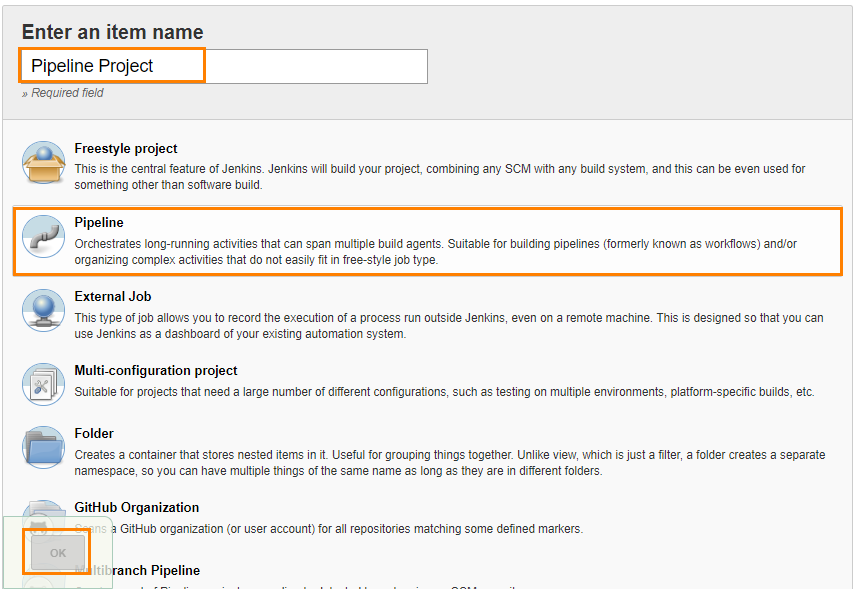
The configuration page appears where you can configure your job by various categories: General, Build Triggers, Advanced Project Options, and Pipeline.
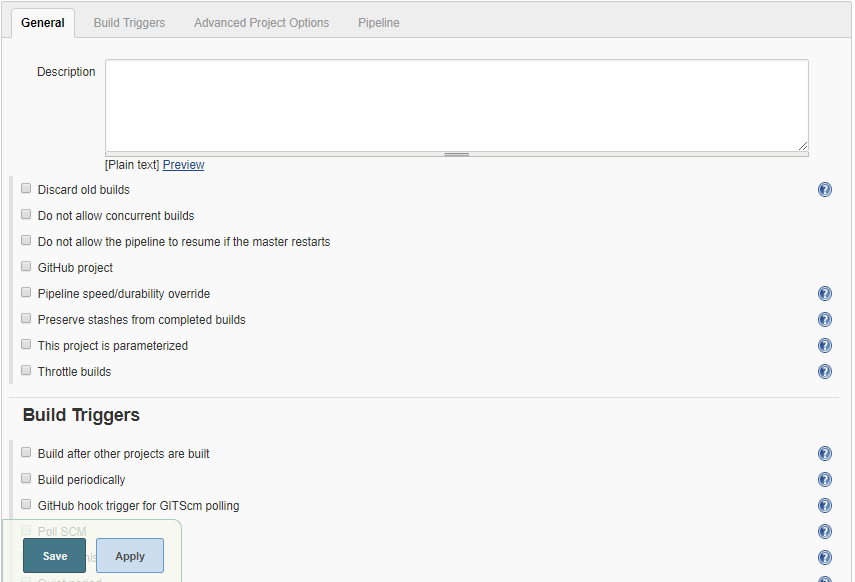
Set Build Triggers (this is an optional step). Select the Build Triggers tab. Let’s just add a periodic trigger which triggers build every minute – every hour – every day (Schedule: * * * * *).
Advanced Project Options: This is optional. You can give Display Name which will replace the name you gave earlier to the Pipeline project.
Jenkins works as a bridge between QMetry Test Management and automation frameworks. To publish results in QMetry, provide Pipeline script.
Enter Pipeline script to define your code repository, generate test result and upload test results into QMetry Test Management for JiraMetry Test Management.
Code Snippet for Cloud
Pipeline Script
step([$class:'QTM4JResultPublisher',testToRun:'CLOUD', apikey:'b8fc4842a27656646aa5a', format:'junit/xml', file:'/target\\surefire-reports\\TEST-com.temp.junit.temptestcase.FirstTestTest.xml', testassethierarchy:'TestCase-TestStep', labels:'junit,master', version:'version 1.11', testrunname:'demo junit testrun for testcase level', testrunkey:'TES-2', platform:'platform 1', sprint:'TES Sprint 1', comment:'junit demo pipeline comment', component:'pipeline', testCaseUpdateLevel:'2', jirafields:' ', attachFile:false])
Code Snippet for Server (QMetry for JIRA - Test Management Plugin v1.18)
Pipeline Script
Basic Authentication
step([$class: 'QTM4JResultPublisher',testToRun: 'SERVER',jiraurlserver: 'http://qtmforjira.qmetry.com', serverAuthenticationType:'BASICAUTH', username: 'superadmin',password: hudson.util.Secret.fromString('password'),apikeyserver: '3527c27609317aae022071af2dd7f908c93110b6ed9', formatserver: 'junit/xml', fileserver: '/target\\surefire-reports\\TEST-com.temp.junit.temptestcase.FirstTestTest.xml', testassethierarchyserver: 'TestCase-TestStep', labelsserver: 'junit master', versionserver: 'version 1.11', testrunnameserver: 'demo junit testrun for testcase level', testrunkeyserver: 'TES-3', platformserver: 'platform 1', componentserver: 'pipeline project', sprintserver: 'JEN Sprint 1', commentserver: 'junit master comment', testCaseUpdateLevelServer: '2', jirafieldsserver: ' ', attachFileServer: false])Token Authentication
step([$class: 'QTM4JResultPublisher',testToRun: 'SERVER',jiraurlserver: 'http://qtmforjira.qmetry.com', serverAuthenticationType:'TOKENAUTH', personalAccessToken:'NzQ2NzU1NjI5MjMxOhPMCv1Pd1B3kqighS78uwGg', apikeyserver: '3527c27609317aae02071ac16f2dd708c93110cb6ed9', formatserver: 'junit/xml', fileserver: '/target\\surefire-reports\\TEST-com.temp.junit.temptestcase.FirstTestTest.xml', testassethierarchyserver: 'TestCase-TestStep', labelsserver: 'junit master', versionserver: 'version 1.11', testrunnameserver: 'demo junit testrun for testcase level', testrunkeyserver: 'TES-3', platformserver: 'platform 1', componentserver: 'pipeline project', sprintserver: 'JEN Sprint 1', commentserver: 'junit master comment', testCaseUpdateLevelServer: '2', jirafieldsserver: ' ', attachFileServer: false])
Code Snippet for Server (QMetry for JIRA - Test Management Plugin v1.14)
Pipeline Script
step([$class: 'QTM4JResultPublisher',testToRun: 'SERVER',jiraurlserver: 'http://qtmforjira.qmetry.com',username: 'superadmin',password: hudson.util.Secret.fromString('password'),apikeyserver: '3527c27609317aae022071ac16f2dd7f908c93110cb6ed9', formatserver: 'junit/xml', fileserver: '/target\\surefire-reports\\TEST-com.temp.junit.temptestcase.FirstTestTest.xml', testassethierarchyserver: 'TestCase-TestStep', labelsserver: 'junit master', versionserver: 'version 1.11', testrunnameserver: 'demo junit testrun for testcase level', testrunkeyserver: 'TES-3', platformserver: 'platform 1', componentserver: 'pipeline project', sprintserver: 'JEN Sprint 1', commentserver: 'junit master comment', testCaseUpdateLevelServer: '2', jirafieldsserver: ' ', attachFileServer: false])Code Snippet for Server (QMetry for JIRA - Test Management Plugin v1.13 and below)
Pipeline Script
step([$class: 'QTM4JResultPublisher',testToRun: 'SERVER',jiraurlserver: 'http://qtmforjira.qmetry.com',username: 'superadmin',password:'password',apikeyserver: '3527c27609317aae022071ac16f2dd7f908c93110cb6ed9', formatserver: 'junit/xml', fileserver: '/target\\surefire-reports\\TEST-com.temp.junit.temptestcase.FirstTestTest.xml', testassethierarchyserver: 'TestCase-TestStep', labelsserver: 'junit master', versionserver: 'version 1.11', testrunnameserver: 'demo junit testrun for testcase level', testrunkeyserver: 'TES-3', platformserver: 'platform 1', componentserver: 'pipeline project', sprintserver: 'JEN Sprint 1', commentserver: 'junit master comment', testCaseUpdateLevelServer: '2', jirafieldsserver: ' ', attachFileServer: false])
Note
The hudson.util.Secret.fromString() method is static and since Jenkins blocks static method calls, Changes must be made using an administrative user account to approve the function permanently.
Jenkins > Manage Jenkins > In-Process Script Approval
Approve signature: staticMethod hudson.util.Secret fromString java.lang.String
Tip
Reference link: Publish multiple framework test results from a single pipeline job.
Syntax of format:
cucumber/json
testng/xml
junit/xml
qas/json
hpuft/xml
specflow/json
Parameters for Cloud
Parameter | Required | Description |
|---|---|---|
testToRun | yes | CLOUD |
apikey | yes | Your API Key. API Key is unique for a specific user in a single project. The result will be imported for the project associated with the given API Key. |
format | yes | Format of result file to be imported. Supported formats: cucumber/json testng/xml junit/xml qas/json hpuft/xml specflow/json |
testassethierarchy | yes | Level of Hierarchy : Test Scenario-Test Case Or Test Case-Test Step |
labels | no | Comma separated names of Labels to be added to the test run. |
version | no | Comma separated names of versions to be added to the test run. |
testrunname | no | Name of the test run to be created. It will be appended with the Jenkins build Number. |
testrunkey | no | Existing Issue Key of Test Run. Test run will be appended with the test case and executions. |
platform | no | Name of Platform on which test run to be executed. |
sprint | no | Name of Sprint to be added to the test run. |
comment | no | Comment to be added to the test run. |
component | no | Comma separated names of Components to be added to the test run. |
testCaseUpdateLevel | no | Test Case update level while reusing test case, starts from 0 to 2. (This is only applicable when you use TestCase-TestStep Hierarchy option) 0 Append test steps while reusing Test Case. 1 Override test steps while reusing Test Case. 2 No change in test steps while reusing Test Case. Default :- No change in test steps while reusing Test Case. |
attachFile | no | Check for upload attachments in execution. Default value: false. |
jirafields | no | Check specific Automation custom fields possible value and format here. |
Parameters for Server instance
Parameter | Required | Description |
|---|---|---|
testToRun | yes | SERVER |
jiraurlserver | yes | Enter JIRA URL |
Basic Authentication OR Personal Access Token | yes | Basic Authentication Basic authentication with Jira's credentials.
|
Personal Access Token If the Allow basic authentication on API calls option is disabled in Jira, then Personal Access Token is required for authentication. To generate personal access token, perform the following steps:
| ||
apikeyserver | yes | Your API Key. API Key is unique for a specific user in a single project. The result will be imported for the project associated with the given API Key. |
formatserver | yes | Format of result file to be imported. Supported formats: cucumber/json testng/xml junit/xml qas/json hpuft/xml specflow/json |
fileserver | yes | Path to your result file to be uploaded. Example : The Jenkins plugin is expecting the file in Jenkins Workspace. If your workspace name is WithoutSouceCode, then you will find a folder name with WithoutSouceCode in your installation directory like Jenkins/Home/workspace/WithoutSouceCode. Your result file should be under Jenkins/Home/workspace/WithoutSouceCode/Testng-result.xml. The path that should be set in plugin configuration is |
testassethierarchyserver | yes | Level of Hierarchy : Test Scenario-Test Case Or Test Case-Test Step |
labelsserver | no | Comma separated names of Labels to be added to the test run. |
versionserver | no | Comma separated names of versions to be added to the test run. |
testrunnameserver | no | Name of the test run to be created. It will be appended with the Jenkins build Number. |
platformserver | no | Name of Platform on which test run to be executed. |
componentserver | no | Comma separated names of Components to be added to the test run. |
sprintserver | no | Name of Sprint to be added to the test run. |
commentserver | no | Comment to be added to the test run. |
testCaseUpdateLevelServer | no | Test Case update level while reusing test case, starts from 0 to 2. (This is only applicable when you use TestCase-TestStep Hierarchy option) 0 Append test steps while reusing Test Case. 1 Override test steps while reusing Test Case. 2 No change in test steps while reusing Test Case. Default :- No change in test steps while reusing Test Case. |
attachFileServer | no | Check for upload attachments in execution. Default value: false. |
jirafieldsserver | no | Check specific Automation custom fields possible value and format here |
On successful completion of the process,
Check the console output. It displays success message for uploading the result file.
Finally check test execution page in QMetry and review your test run results.
Configure Specflow for Pipeline
Note
Prerequisites:
VSTest Runnner Plugin
Visual Studio IDE setup or Visual Studio Build Tools setup on server
Perform the following steps to configure Specflow for Pipeline:
Check out the Source Code.
checkout([$class: 'GitSCM', branches: [[name: '*/master']], doGenerateSubmoduleConfigurations: false, extensions: [], submoduleCfg: [], userRemoteConfigs: [[url: 'https://github.com/lizamathew/Spec-Flow-Demo.git']]])
Add Script to update packages for msbuild using NuGet.exe file from checkout repository.
bat 'C:/Users/liza.mathew/.jenkins/workspace/PipelineSpecflowProjectMaster/Specflow/.nuget/NuGet.exe update -self'
Configuration for MSBuild
bat "\"${tool 'MSBuild'}\" Specflow/SpecResults.sln"(MSBuild is a tool configured for path to MSBuild executable then specify relative path for solution file of project)Configuration of VSTest. VSTest is a tool configured for path to VSTest executable.
step([$class: 'VsTestBuilder', 'vsTestName':'${tool VSTest}', enablecodecoverage : false, 'testFiles':'Specflow/SpecResults.ApprovalTestSuite/bin/Release/SpecResults.ApprovalTestSuite.dll'])
vsTestName: path to VSTest executable
testFiles: specify relative path to your VSTest compiled assemblies
Define Parameters
To define parameters for your job, select the This project is parameterized checkbox.
The Add Parameter list is enabled with the list of parameter types. Add as many parameters as you need.
There are different parameter types available. The way parameters take effect according their respective parameter type.
For example,
String Parameter are selected, and corresponding parameters are added.
The above parameters will be parsed dynamically at the run time.
The field values should be entered in the following syntax:
${ParameterName}
For example,
For the parameters created above, the field value would be ${API} and ${TestRunName} respectively. The parameter values will be parsed accordingly for the corresponding fields.
The values can also be changed before triggering the Jenkins build.
JIRA Fields
i) How to get Custom Field ID?
Rest call to JIRA to get all JIRA fields.
The following URL gives all custom fields get ID for selected custom fields that you want to apply.
<Jira_Base_URL>/rest/api/2/field
ii) Base format for custom fields.
[ { "testRun": [ { } ] }, { "testScenario": [ { } ] }, { "testCase": [ { } ] }]iii) Standard Custom Field Types
The following types are for reference only, other types of Custom Field Types are also supported.
Custom Field Type | Validation Rule | Example |
|---|---|---|
Checkboxes | The checkbox accepts comma separated multiple values |
|
Date Picker | The Date picker accepts only specified format Date |
|
Date Time Picker | The Date time picker accepts only specified format Date and time |
|
Number Field | The Number field accepts any number with decimal |
|
Radio Buttons | The radio button accepts single value from JIRA fields |
|
Select List (multiple choices) | The Select List Multiple accepts comma separated multiple values |
|
Select List (single choice) | The radio button accepts single value from JIRA fields |
|
Text Field (multi-line) | It accepts text in multiple lines |
|
Text Field (single line) | It accepts text in single line |
|
URL Field | It accepts Web URL |
|
User Picker (single user) | The User field accepts only available JIRA users |
|
iv) JSON Example
If you want to set 2 custom fields (checkbox, single text) on test run issue type and one custom fields (Radio Button) on scenario and test case level.
"JIRAFields":[ { "testRun": [ { "customfield_10200": [ { "value": "true" }, { "value": "false" } ] }, { "customfield_10211": "this is sample.example" } ] }, { "testScenario": [ { "customfield_10206": { "value": "option1" } } ] }, { "testCase": [ { "customfield_10206": { "value": "option1" } } ] }]