Copy Custom Fields
You can copy custom fields of the Test Case, Test Cycle, Test Plan, and Test Execution modules to other modules of the current space as well as required modules of other spaces.
Note
Required Permission:
For copying fields to the current space, Configure “View” and “Modify” permissions for the that space.
For copying fields to other spaces: Configuration “View” and “Modify” permissions for the source and destination spaces.
Copy Custom Fields to Current Space
You can copy custom fields of one module to other modules within the same space. When custom fields with extensive list values exist in a space and are used in multiple modules, the copy feature helps users copy the custom fields with their values from one module to another within the same space. It simplifies the process of creating and configuring custom fields, saving time and effort when consistent fields are needed across multiple modules.
The settings related to mandatory fields and Default Custom Field Values also get copied from the source space to the destination space.
Perform the following steps to copy custom fields to the current space:
Go to Configuration and select Custom Fields.
Select the module section from the Test Case, Test Cycle, Test Plan, and Test Execution sections from which you want to copy the custom fields.
Select the custom fields that you want to copy to other modules of the current space.
Click the Copy at the top.
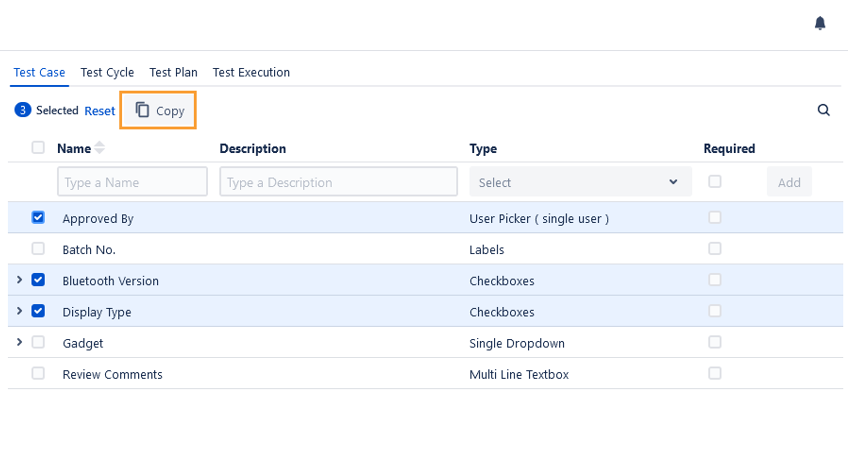
The Copy Custom Fields dialog box appears.
You can copy the selected custom fields to Current Space or Other Space(s).
Select the Current Space option.
Select the target module where you want to copy the selected custom fields. The section displays modules other than the module from which you selected the custom fields to copy.
Note
Duplicate fields are skipped while copying.
Click Copy.
The success message appears.
You can see the selected custom fields are copied to the selected modules of the current space.
Copy Custom Fields to Other Spaces
You can copy Custom Fields from one space to another space. The functionality allows users to use similar custom fields in different QMetry spaces without having to add these custom fields individually.
Users can save their time as they do not have to create redundant or duplicate custom fields for different QMetry spaces.
The settings related to mandatory fields and Default Custom Field Values also get copied from the source space to the destination space.
Note
If the selected fields already exist in the destination space, they will not get copied as duplicate entities will be ignored while copying.
Perform the following steps to copy custom fields to other spaces:
On the Custom Fields screen, select the module section from the Test Case, Test Cycle, Test Plan, and Test Execution sections from which you want to copy the custom fields.
Select the custom fields that you want to copy to other spaces.
Click Copy.
The Copy Custom Fields dialog box appears.
You can copy the selected custom fields to Current Space or Other Space(s).
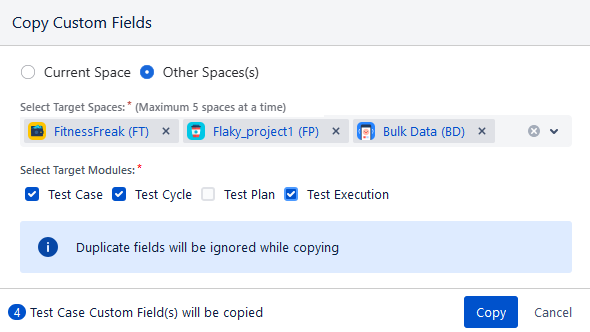
Select the Other Space(s) option.
Select the space wherein you want to copy the selected custom fields. You can select multiple QMetry Spaces (maximum 5 spaces) at a time to copy the custom field.
Target modules: Select the modules of the other spaces in which you want to copy the selected custom fields of the current space.
Click Copy.
The success message appears.
You can see that the selected custom fields are copied to the selected modules of the other selected spaces.
View Audit Logs
Source Space
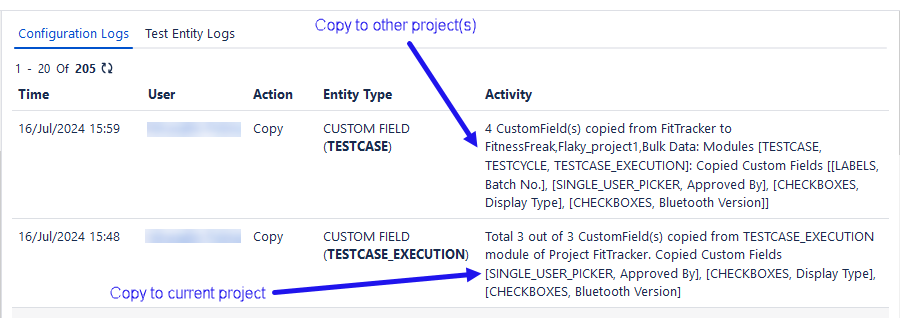
The Copy Custom Fields activities are captured in the Audit Log of the source space as shown below.
Go to Configuration, select Audit Log, and click the Configuration Logs tab.
Destination Space
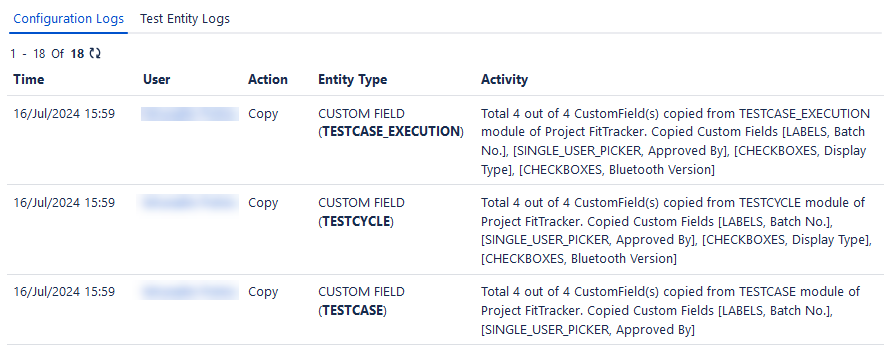
The Copy Custom Fields activities are captured in the Audit Log of the destination space.
In the destination space, go to Configuration, select Audit Log, and click the Configuration Logs tab.
View Progress
You can verify the process of copying custom fields from one space to the same space or another space in the Notification section.
To view the progress of the Copy operation, click the bell icon to view the background processes.
Completed: If the custom fields are copied completely, the Notification section will show the “Completed” status for the operation.
Completed with Errors: If the custom fields are copied partially, the Notification section will show the “Completed” status with an error message. To view the error message, click the error icon.
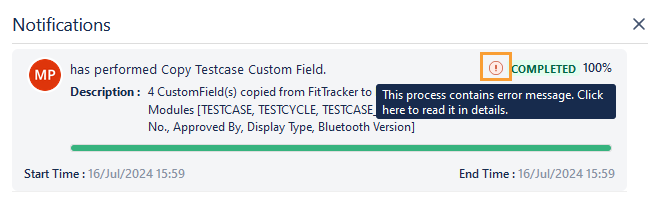
The dialog box shows more details related to the error.