QMetry JQL Functions
QMetry JQL functions extend Jira Query Language (JQL) with QMetry-specific query capabilities. You can use these functions anywhere Jira supports JQL queries to filter Jira issues, such as stories, defects, and other work types, by using QMetry test management fields as search criteria.
Jira stories refer to Work Types set as “Story” and Jira bugs refer to Work Types set as “Bug” under Space Settings > Apps > QMetry Settings > Space Settings > Work Type.
QMetry JQL functions can be saved, shared, exported, and used in a dashboard, Confluence, and QMetry Reports where Defect and Requirement Filters are provided to generate the reports.
Note
Permission required: You must have the Execute QMetry JQL Functions permission under Space Settings > Apps > QMetry Settings > Space Permission to run QMetry JQL functions.
Supported fields. QMetry JQL functions support the QMetry system and custom fields. You can combine multiple fields by using the AND and OR operators to create compound queries.
The following features are available only in the Cloud edition:
Query creation page in Basic mode
Cache buster support as the third query argument
Note
The cache buster argument is optional but recommended when you need accurate, real-time results. The cache buster forces the function to return updated results for each execution.
Accessing JQL Funcitons
To access the JQL Funcitons, perform the following steps:
Log in to QMetry Test Management for Jira.
Click the JQL Functions tab.
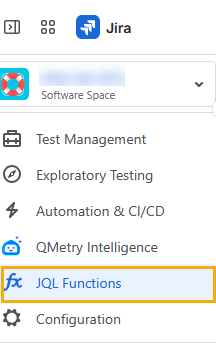
The QMetry JQL Functions screen appears and displays the supported functions.
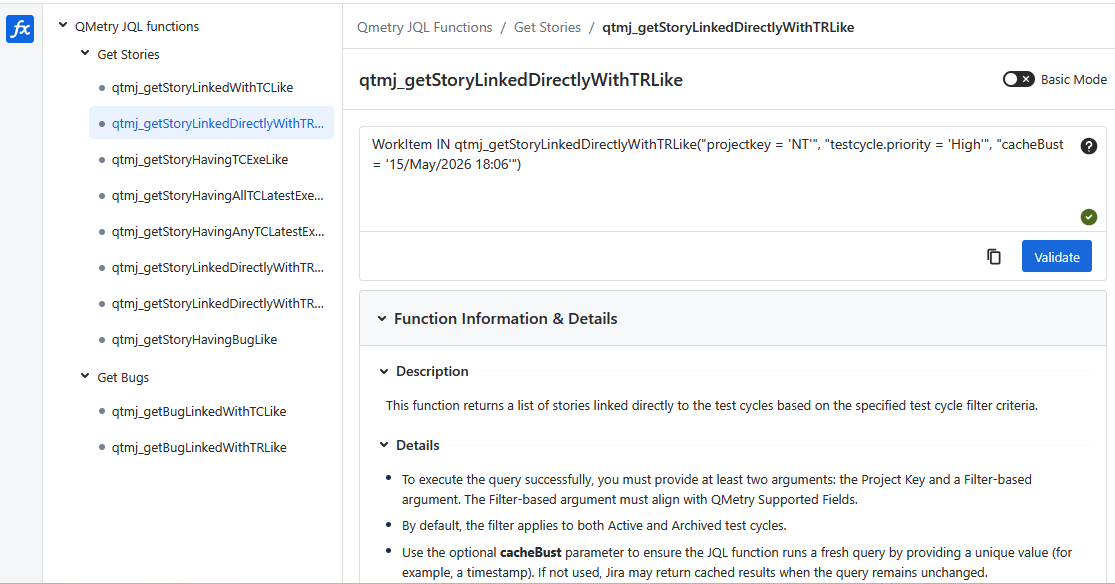
Creating or Modifying a JQL Query
Refer to the details provided for the JQL on the screen and modify the query to retrieve the desired records using the query syntax or Basic Mode.
The Basic Mode provides a visual interface for generating QMetry JQL function queries. You do not need to write the query manually.
To create a JQL query by using the Basic Mode option, perform the following steps:
Select a JQL function, on the QMetry JQL Functions pane.
Turn on the Basic Mode toggle. The Query Creation section appears.
Select a field from the list of supported system and custom fields.
The available operators for the selected field appear.
Select an operator and one or more values for the field.
(Optional) Click Add Group to add another condition.
Use the AND or OR operator between groups to define the query relationship.
Click Generate.
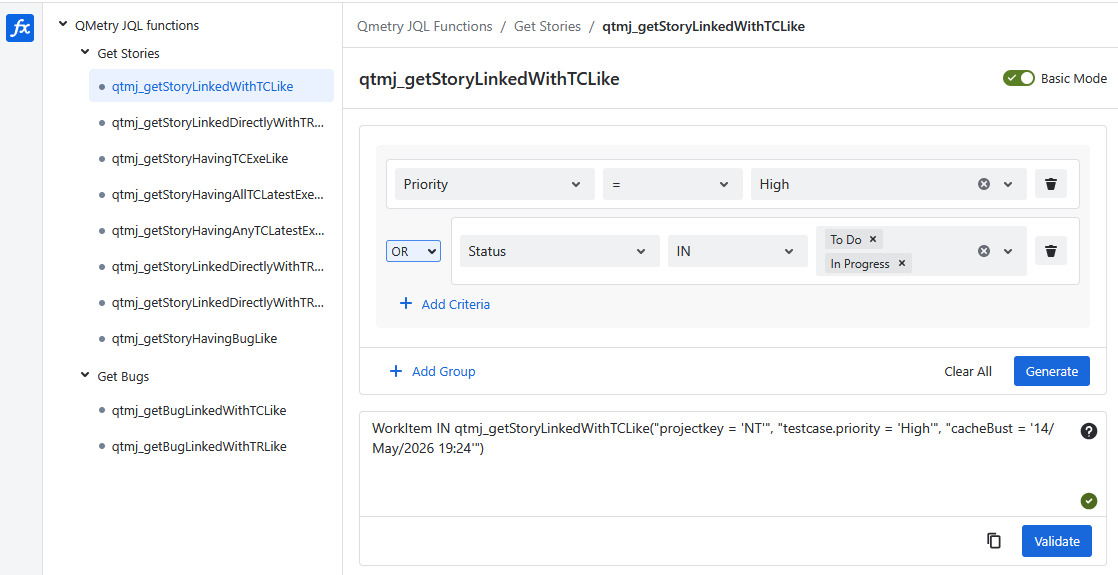
The generated query appears in the area where you can validate it.
A green check mark next to the query indicates that the query was validated automatically.
(Optional) If you modify the generated query manually, click Validate.
A validation error appears if validation fails.
Functional Arguments
QMetry JQL functions support the following three arguments:
Argument | Position | Required | Description |
|---|---|---|---|
Project Key | First | Yes | Specifies the Jira space that you are working in. |
Field name and value | Second | Yes | Specifies the QMetry field to filter on, such as testcase priority, and the value or comma-separated list of values to match against the selected field or field value. |
Cache buster | Third | No | Bypasses Atlassian result caching and returns real-time data. ImportantOmitting this argument can return outdated results. |
Example Query
This function returns a list of stories linked to test cases with a priority "High" or "Blocker".
WorkItem IN qtmj_getStoryLinkedWithTCLike("projectkey = 'NT'", "(testcase.priority IN ('High','Blocker'))", "cacheBust = '15/May/2026 18:16'")The first argument specifies Project Key, which is mandatory.
The second argument specifies the QMetry field name and its values.
The third argument specifies the cache buster value. This argument is optional but recommended for real-time results.
Using QMetry JQL Function in Jira
Once the JQL validation succeeds, you can use the query in Jira to retrieve matching issues.
To use the QMetry JQL Functions in Jira, perform the following steps:
Click the Copy icon to copy the query on the screen, and then paste the query into the Jira issue search bar for Advanced search.
The JQL search retrieves records matching the search criteria defined in the function.
QMetry JQL Functions
The table below shows categorized queries with reference links for more information.
Function Name | Description | Reference Link |
|---|---|---|
Get a List of Stories based on Test Cases, Test Cycles, or Bugs | ||
qtmj_getStoryLinkedWithTCLike | This function returns a list of stories linked to test cases based on the specified test case filter criteria. | |
qtmj_getStoryLinkedDirectlyWithTRLike | This function returns a list of stories linked directly to the test cycles based on the specified test cycle filter criteria. | |
qtmj_getStoryHavingBugLike | This function returns a list of stories in the project associated with bugs discovered during the executions of test cases or test steps linked to those stories. | |
Get a List of Bugs | ||
qtmj_getBugLinkedWithTCLike | This function returns a list of bugs discovered during all the executions of test cases or test steps based on the specified test case filter criteria. | |
qtmj_getBugLinkedWithTRLike | This function returns a list of bugs discovered during all the executions of test cases or test steps based on the specified test cycle filter criteria. | |
Get a List of Stories based on Test Executions | ||
qtmj_getStoryHavingTCExeLike | This function returns a list of stories where any of their test case executions match the specified execution filter criteria. | |
qtmj_getStoryHavingAllTCLatestExeLike | This function returns a list of stories where every latest execution of their linked test cases matches the specified execution filter criteria. | |
qtmj_getStoryHavingAnyTCLatestExeLike | This function returns a list of stories where any of their latest test case executions match the specified execution filter criteria. | |
qtmj_getStoryLinkedDirectlyWithTRHavingAllTCLatestExeLike | This function returns a list of stories directly associated with test cycles, where every latest execution of their linked test cases in any test cycle matches the specified execution filter criteria. | |
qtmj_getStoryLinkedDirectlyWithTRHavingAnyTCLatestExeLike | This function returns a list of stories directly associated with test cycles, and any of their latest test case executions in any test cycle match the specified execution filter criteria. | |