Configure Email Notifications for Automation Imports
Overview
The Notification settings in the Automation module allow you to configure email recipients who receive email alerts when automation imports succeed or fail, enabling your team to stay informed about automation health and react quickly to import issues. The email delivers the same import result that QMetry Test Management for Jira displays on the History tab directly to the selected recipients.
You can define both individual users and Jira groups as recipients of email notifications.
Note
Permission required: You need the Org-admin role to configure email notification settings.
Default Notification Behavior
By default, QMetry Test Management for Jira sends the notification email only to the API user whose API key you use to import the results. This applies to both successful and failed imports. To notify additional recipients, configure the users and Jira groups on the Notification tab.
Note
Prerequisites
You have access to the Automation module.
The users and Jira groups you want to notify exist in your organization.
Enable and Configure Email Notifications
To enable automation email notifications and define recipients, perform the following steps:
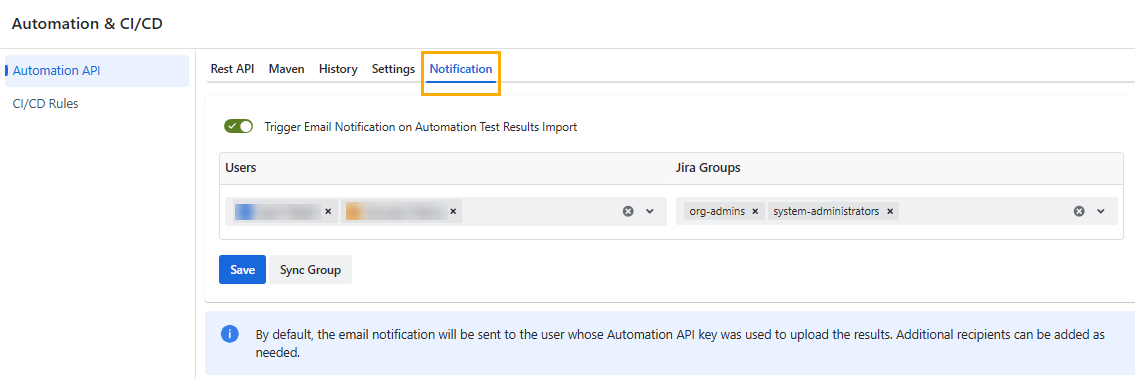
Go to the Automation module and select the Notification tab.
Enable the Trigger Email Notification on Automation Test Results Import toggle option.
In the Users list, select the users who should receive the success and failure notifications.
Note
You can add a maximum of ten users at a time.
In the Jira Groups list, select the Jira groups whose members should receive the same notifications.
Note
You can add a maximum of two Jira groups at a time.
You can select only Jira groups with ten or fewer users.
Click Save to save your configuration.
After you save, QMetry Test Management for Jira sends notifications to the configured users and Jira groups, in addition to the Automation API user.
Sync a Jira Group
After adding or removing members from a Jira group, sync the group on the Notification tab before the next import. Syncing updates the group with the latest email recipient changes, ensuring the targeted audience receives automation test notifications.
To sync a Jira group, do the following:
On the Notification tab, click Sync Group.
Click Save to save your configuration.