Execution of Parameters and Parameter Values
Before executing parameters along with parameter values in your space, refer to the following pages to understand:
Execute Parameterized Test Cases
Perform the following steps to execute parameterized test cases:
Once the test case with Parameters is ready, go to Test Cycle and link that test case with a test cycle.
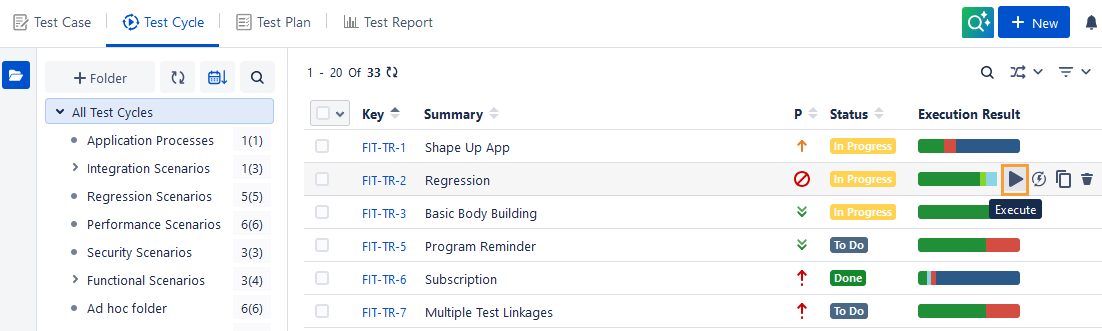
Hover over the test cycle record, the Execute icon becomes visible.
Click the Execute icon to navigate to the Test Execution Screen to run the test and record the status.
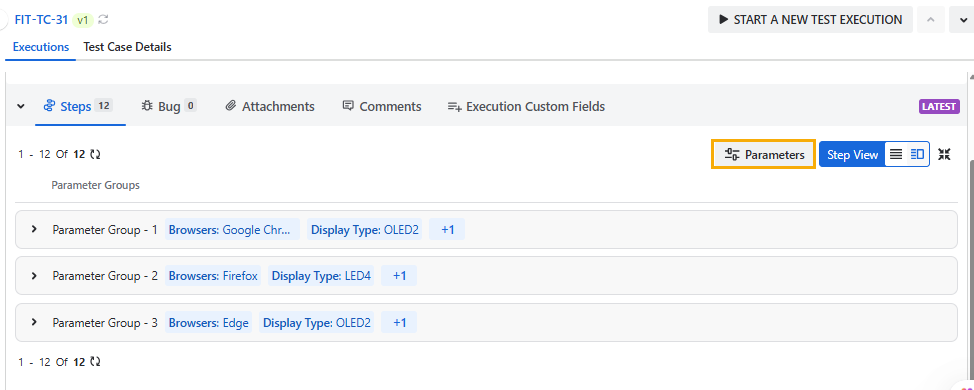
You can view Parameter Groups details on the Steps tab of the Test Execution Screen for both List View and Grid View. The Steps tab provides an overview of multiple parameter group combinations and their values.
When you enable the Auto Update Execution Result setting in the Execution Result section of Configuration, the system displays the consolidated execution status at the parameter group combination level.
The Execution Status column allows you to quickly identify which combinations have the status of Passed, Failed, or remain unexecuted. It becomes easier for you to determine the test results and the status of each parameter group combination.
Each Parameter Group includes test steps under it. You can execute the test steps under individual Parameter Groups on the screen.
Any change in the execution result of a test step also impacts the execution result of its parameter group combination if the Auto Update Execution Result setting is enabled.
Parameterization Support at Execution Level
The Execution-level parameterization allows users to add parameter values during test execution without modifying the original test case. If a test case contains parameters defined at the test step level, those parameters are available during execution. Users can add new values to existing parameters, which are applied only to the current execution.
Key Capabilities
View parameters defined at the test case level during execution.
Add new parameter values at the execution level, which also reflect in the Configuration section.
Maintain separation between test case design and execution data.
Behavior
Test case–level parameters are read-only during execution.
Users can add new values to existing parameters.
New values are stored as execution-level parameter groups.
Step details reflect execution-level parameter values.
When you modify test case grid execution-level parameters, a Modified indicator appears, indicating that the execution differs from the original test case configuration.
Benefits
Preserve test case integrity while allowing flexibility during execution.
Handle data variations without changing the original test case.
Track all parameter changes in execution logs.
Note
Permission required: User requires the QMetry Test Cycle Execute permission to modify Parameters at Test Execution level.
Note
At the execution level, you can only update or remove execution-level values, but cannot create new parameters or modify or delete the test case level parameter values.
Execution-level parameter changes do not affect the original test case.
Syncing steps or other details from the main test case removes any parameter values added at the execution level, maintaining consistency with the original test case configuration.
Add Parameter Values During Execution
Perform the following steps to add parameter values during execution:
Go to the Test Cycle module.
Navigate to the Execution screen.
Select a test case that includes parameterized test steps and select the Executions tab.
Click the Parameters button.
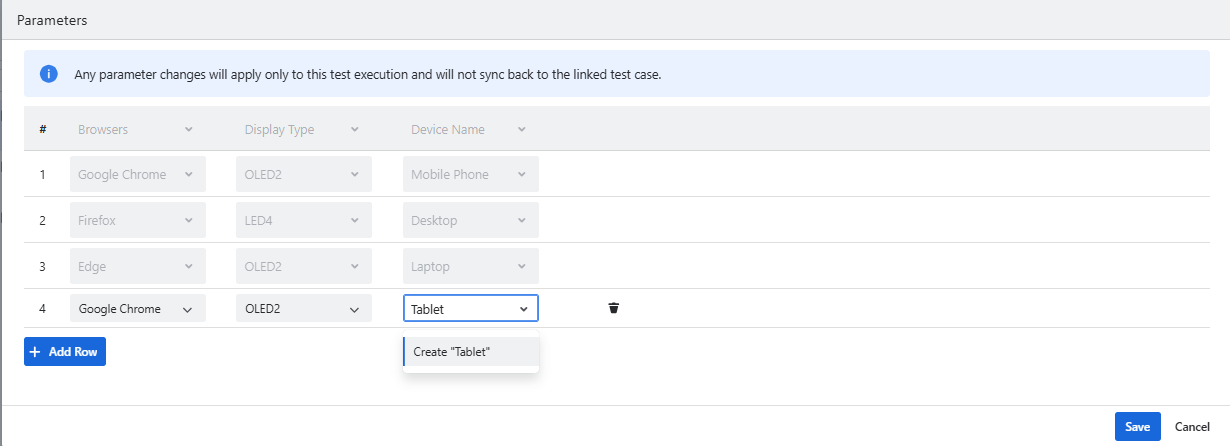
In the Parameters dialog, you can view existing parameter values defined at the test case level.
Click Add Row and select a value from the drop-down or add a new value.
Click Save.
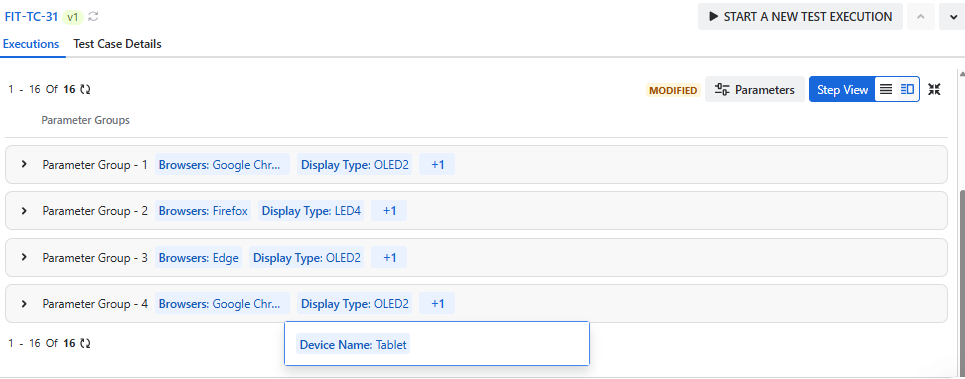
Verify that a new parameter group is created and the values appear in the step details.
Once you modify the execution-level parameters, the Modified indicator appears, indicating that the execution parameters are changed.
Execution-Level Parameter Behavior
The following table displays the behavior across the operations:
Operation | Behavior |
Clone Execution | Includes both test case–level and execution-level parameters |
Start New Execution | Includes only test case–level parameters |
Export (Excel, PDF, Word) | Includes all parameter groups |
Execution Logs | Records parameter changes |
Sync Steps
If steps are updated in the test case, the link to sync steps appears on the execution screen. Click the provided link to get the updated content of the steps.