Display View for QMetry Sections
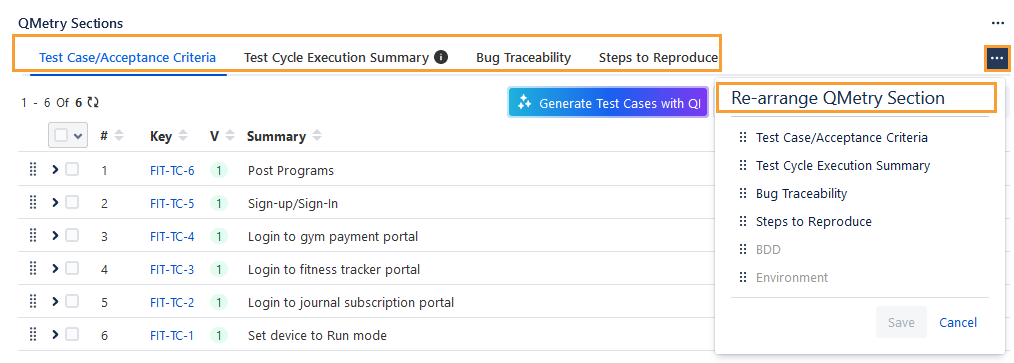
The Stack All Panels in Single Section option improves the loading experience of the Jira issue page by consolidating all QMetry panels into a single, streamlined section. This reduces rendering time and enhances overall performance.
The Global Settings for Display View for QMetry Sections feature allows Jira users with Administer Project and Browse Projects permissions to apply global settings that consolidate all QMetry panels into a single section. This configuration improves the loading performance of Jira issues. The system displays the sections as tabs. This feature allows organizations to choose whether to enable the tabbed view for all users. Users can reorder the tabs based on their preferences, and the system preserves these preferences. As a result, when users access any project or issue, the system displays the tabs in the order defined in the Global Settings.
Perform the following steps to configure the Display View for QMetry Sections option:
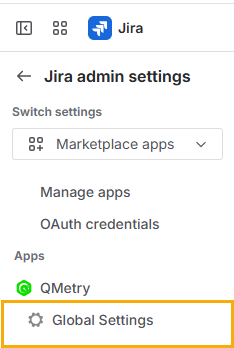
Go to Settings, and then select Marketplace apps.
Alternatively, you can expand the Apps drop-down list on the toolbar and click More actions for QMetry and select App Settings.
Select Global Settings under QMetry on the navigation bar. The QTM4J Global Settings screen appears.
Select the General Configuration section. You can see the options to Display View for QMetry Sections on the screen.
Select either of the options to apply as global settings.
Note
The settings will be applied to all the users, all QMetry-enabled projects, and all issue types.
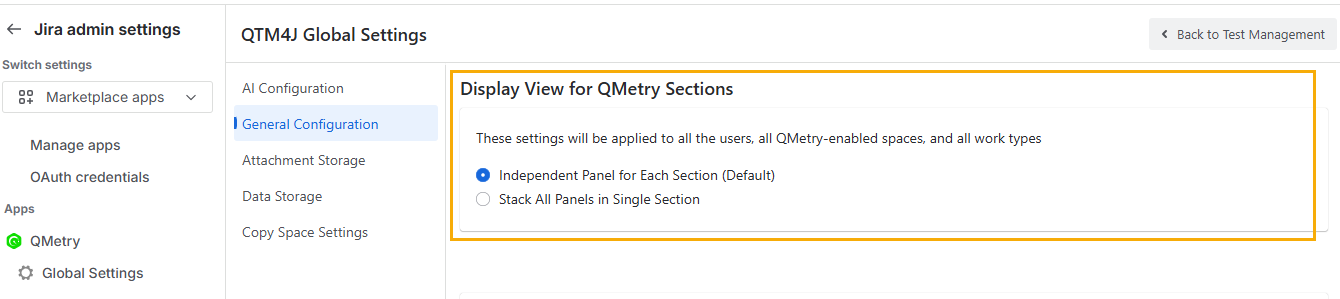
Independent Panel for Each Section (Default): This option is set as the default. The system displays each QTM4J section in a separate, expandable panel on the Jira issue detail page.
Stack All Panels in Single Section: If you select this option, the system displays all QTM4J sections as tabs arranged side by side. You can also rearrange the sections to customize the QMetry Sections view.
On the Story detail page, click the View app actions icon.

You can access the section details by opening the tab and rearranging the sections to customize the QMetry Sections view.