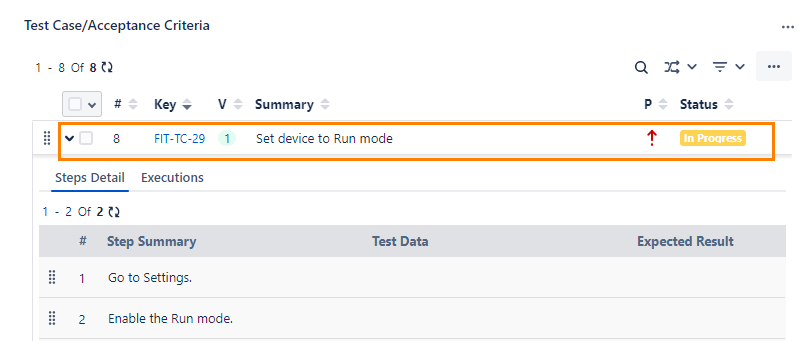
Create Test Cases from Jira Issue Page
QMetry Test Management for Jira allows users to directly create and link test cases from the Jira work page. You can also use these test cases directly from the Jira work page across spaces.
Perform the following steps to create test cases from the Jira work page:
Go to the Jira work detail page. If QMetry for Jira Add-on is configured with Jira, you can see the Test Case/Acceptance Criteria pane.
If you do not see the pane, then click the ellipsis (...) icon and select Test Case/Acceptance Criteria.
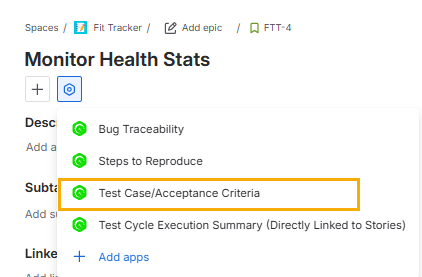
The Test Case/Acceptance Criteria pane becomes visible.
To create a new test case from Jira, click the ellipsis (...) icon on the Test Case/Acceptance Criteria section and select Link New Test Case.
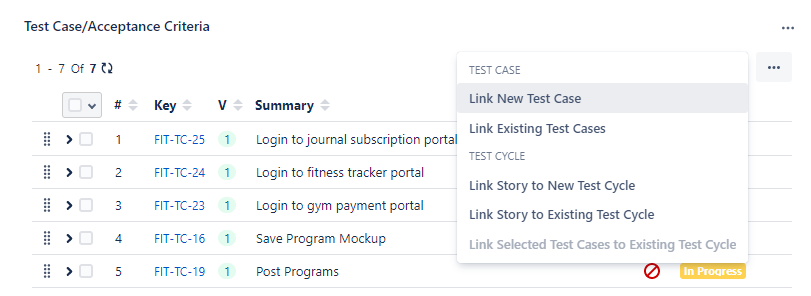
The Create New Test Case screen appears in QMetry Test Management for Jira.
Enter test case details and click Create.

Note
QMetry Test Management for Jira uses Jira’s native editor, and some characters, like backslashes, used in the wiki markup body, become unusable by default. This is a technical limitation from Jira's end. As a workaround, you can use Code from the rich text editor to mention any text containing backslashes.
The new test case is created in the Test Case module.
In Jira, test cases are added to the work. Expand the test case to reveal additional details. When expanded, each test case displays its step details and the test cycles it is associated with.