QMetry For Jira Test Management Plugin 4.0 and above
Configuring a Standard Jenkins job
Freestyle
Perform the following steps to create a standard Freestyle job in Jenkins:
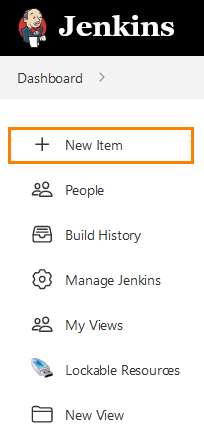
To create a new Jenkins job, click the New Item option on the Jenkins menu.
Provide a name for your job.
Select Freestyle project on the screen and then click OK.
The configuration page appears.
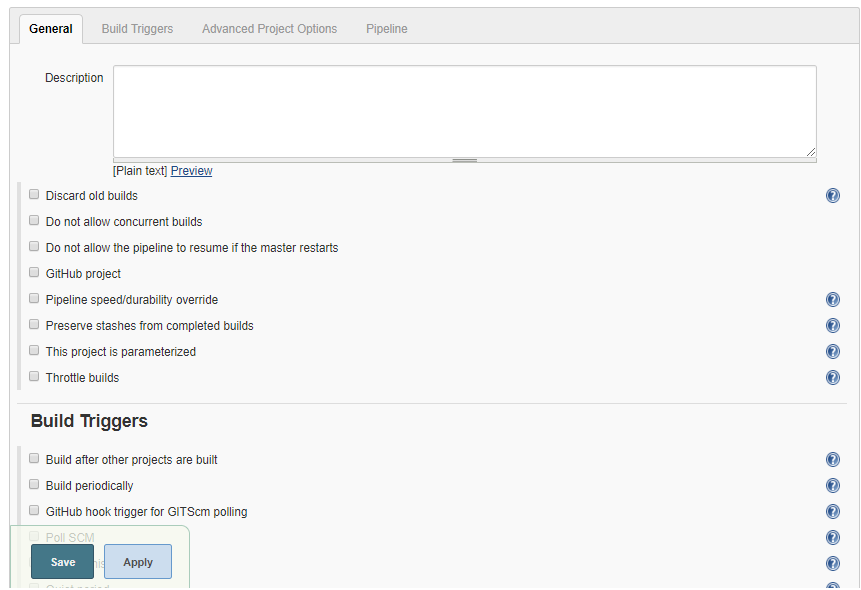
Configure your job by various categories: General, Source Code Management (SCM), Build Triggers, Build, and Post build actions.
On the Source Code Management tab, select the appropriate option in which you have your source code. For example, here it is Git. So, select Git and provide the necessary information.
Note
Configure the GitHub plugin in the global configuration.
Optionally, set Build Triggers. Select the Build Triggers tab. Add a periodic trigger thabuild every minute, every hour, every day (for example, Schedule: * * * * *).
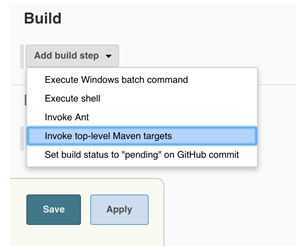
Select a build step from various options: Ant, Maven, Windows batch process, and so on. For example, for a Maven project, trigger a Maven build and specify goals.
The next step is to add Post-build Actions. Here, add the plugin named QMetry Test Management for Jira Plugin.
Configuring QMetry for Jira Test Management Plugin as a Post-build Action
Jenkins works as a bridge between QMetry Test Management and Jira plugin. To publish results in QMetry Test Management for Jira define another post-build action.
Perform the following steps to configure the plugin as a post-build action:
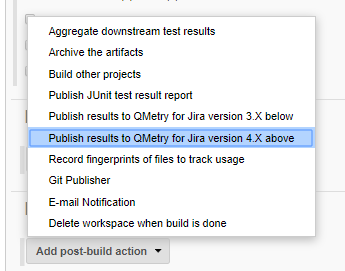
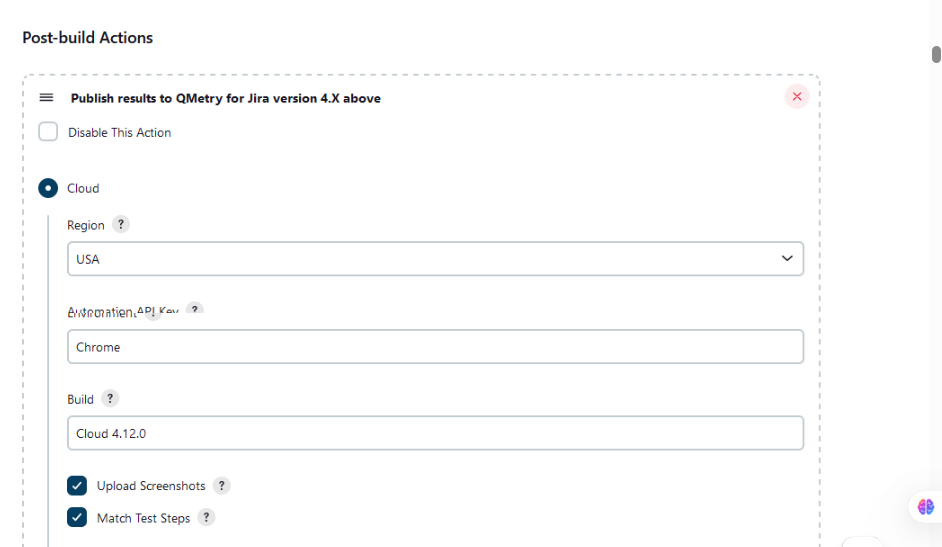
On the Add post-build Actions drop-down list, select Publish test result to QMetry for Jira version 4.X above.
There are two options: Cloud and Server. Slect either Jira Cloud or Jira Server as per your Jira Hosting,
Fill in the required data for Cloud or Server.
Cloud
In the case of Cloud instance for QMetry Test Management for Jira, select the Cloud option and fill in the required data.
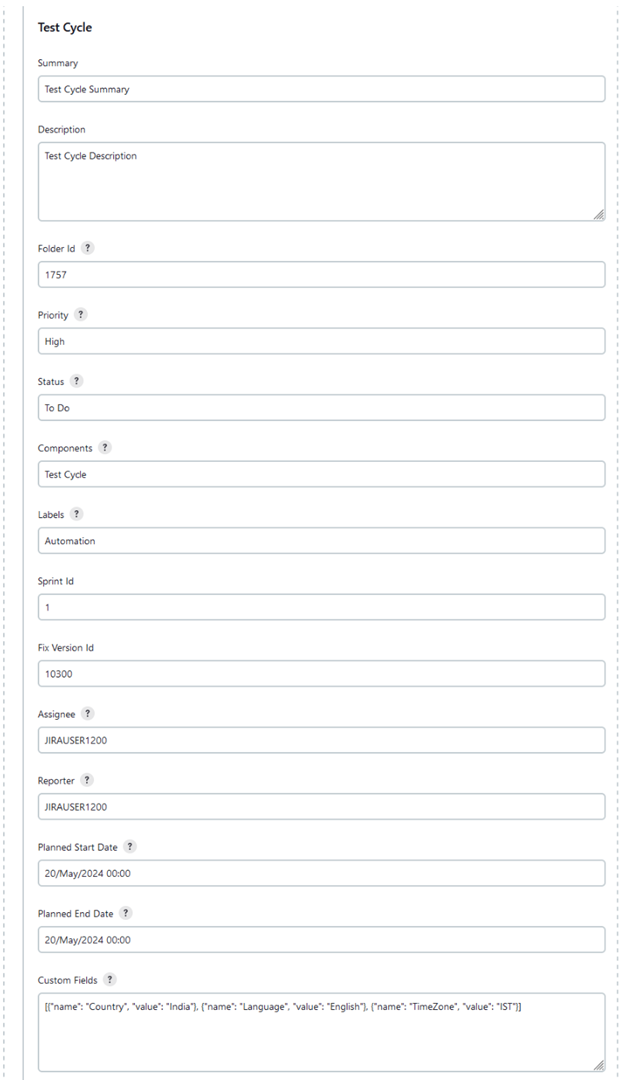
Test Cycle Fields
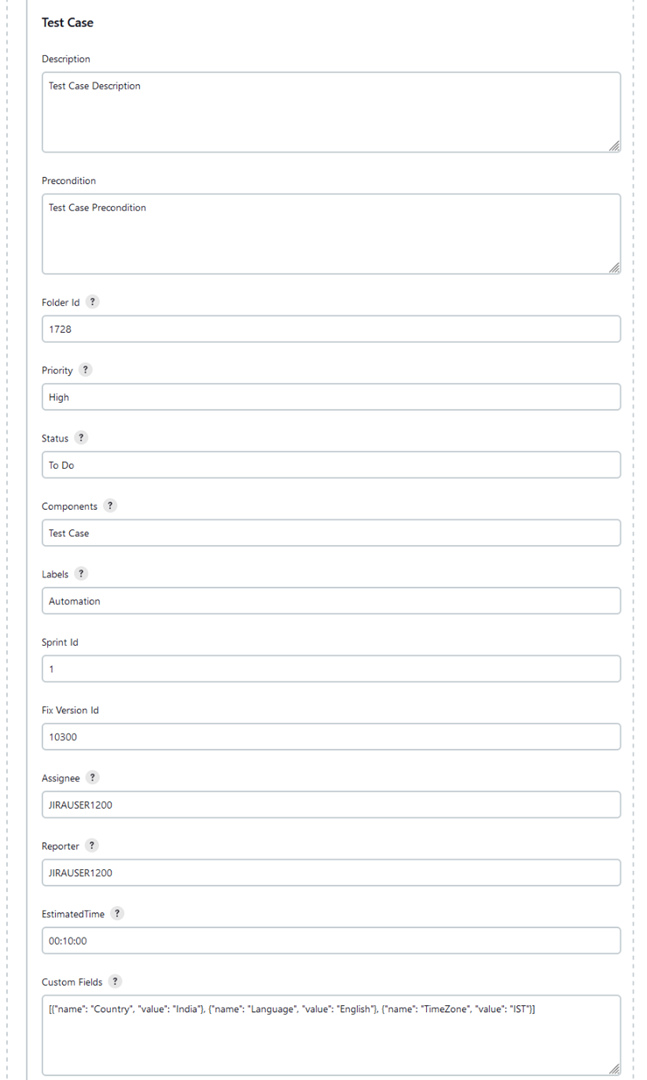
Test Case Fields
Test Cycle Execution Fields
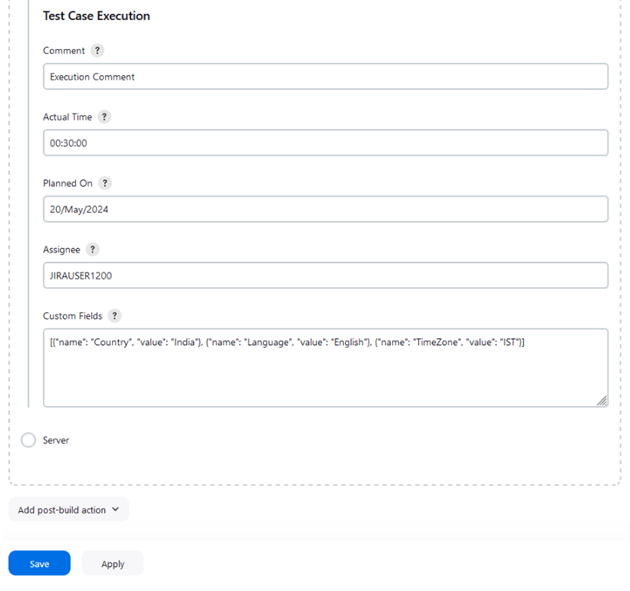
You can get more information regarding fields by clicking the Help icon for respective fields. It explains what to enter in that particular field.
Parameters for Cloud instance
Parameter | Type | Required | Description |
Region | selection | No | QMetry Test Management for Jira supports two regions: USA and Australia. Check your region from Jira, navigate to QMetry > About > Hosted Region. USA is selected by default. |
API Key | string | Yes | Your API Key. An API Key is unique for a specific user in a single project. It imports the results for the project associated with the given API Key. |
Format | selection | Yes | Format of the result file. Supported formats are: cucumber/json testng/xml junit/xml QAF hpuft/xml specflow/json |
Automation Hierarchy | selection | No | Applicable only for JUnit or TestNG frameworks. Set Hierarchy for Automation Uploads Test Cycle - Test Case - Test Step Hierarchy as 1 (Default), 2 or 3. Default Settings: It refers to QMetry > Automation > Automation API > Settings. Automation Hierarchy 1: Test Name Tag is created as Test Case & Test Method Name Tag is created as Test Step. Automation Hierarchy 2: Test Name Tag is created as Test Cycle & Test Method Name Tag is created as Test Case. Automation Hierarchy 3: Suite Name Tag is created as Test Cycle & Test Method Name Tag is created as Test Case. |
Append Test Name | selection | No | Applicable only for JUnit or TestNG frameworks automation result uploads with Hierarchy 2 or 3. Default Settings: It refers to QMetry > Automation > Automation API > Settings. Accepted Values = false (Default), true
|
File | string | Yes | Path to your result file to be uploaded. Example : The Jenkins plugin is expecting the file in Jenkins Workspace. If your workspace name is WithoutSouceCode, then find a folder name with WithoutSouceCode in your installation directory like Jenkins/Home/workspace/WithoutSouceCode. Your result file should be under The path that should be set in plugin configuration is /Testng-result.xml. If your automation generates multiple result files of the supported format in a folder then provide the absolute path till the folder name(It should not be the path till workspace). QMetry plugin will zip all supported format files and upload them to QMetry. |
Test Cycle To Reuse | string | No | Key of the test cycle to be reused. |
Upload Screenshots | checkbox | No | Check to upload attachments in execution. Default value: false. |
Match Test Steps | checkbox | No |
When the Test Cycle is not been Reused Create/Reuse a test case with a summary or test case key that exactly matches the automated test case uploaded through the result file, and exclude matching of test steps. The execution results of the test case will be imported or calculated based on the test case/step results from the automation result file. The execution result of the test case will be propagated to the test steps in the case of test case reuse/creation. Individual test case steps will not be matched and their execution results/details will not be picked from the result file. When the Test Cycle is been Reused When the Test Case Key is mapped in the result file and the Test Case Key is found linked to the Test Cycle. The existing linked test case version, which is part of the Test Cycle will be used. If multiple versions of the same test case key are linked to the test cycle, the one which traced first will be used. The test steps will not be matched to create a new version or link a different version. When the Test Case Key is mapped in the result file and the Test Case Key is not linked to the Test Cycle and the Test Case Key exists in the Test Case Library. The existing latest version of the test case that matches based on the test case summary will be linked to the existing Test Cycle. If there are multiple test cases with the same summary exist, the one that is traced first will be linked to the existing Test Cycle. The test steps will not be matched to create a new version or link a different version. In a project where propagation is off, the status of the step will not be mapped/changed. When the Test Case Key is mapped in the result file and the Test Case Key is not found linked to the Test Cycle and the Test Case Key is not found in the Test Case Library, and the Test Case Summary matches with any existing test cases linked to the Test Cycle. The existing linked Test Case version which is part of the Test Cycle will be used. The test steps will not be matched to create a new version. The Test Case Key is not mentioned in the result file and the Test Case Summary matches any existing test case that is already linked to the Test Cycle. The existing linked Test Case version which is part of the Test Cycle will be used based on the summary. The test steps will not be matched to create a new version. When the Test Case Key is mapped in the result file and the Test Case Key does not exist in the Test Cycle OR is Not found in Library and the Test Case Summary also does not match any existing Test case in the Test Cycle andTest Case with the same summary isfound in the Test Case Library. The existing latest version of the test case that matches based on the test case summary will be linked to the existing Test Cycle. If there are multiple test cases with the same summary exist, the one that is traced first will be linked to the existing Test Cycle. The test steps will not be matched to create a new version or link a different version. When the Test Case Key is mapped in the result file and the Test Case Key does not exist in the Test Cycle OR is Not found in the Library and the Test Case Summary also does not match any existing Test case in the Test Cycle OR is not found in the Test Case Library. A new test case without steps will be created and will be linked to the Test Cycle being reused. The execution results of the test case will be imported or calculated based on the test case/step results from the automation result file. The execution result of the test case will be propagated to the test steps in the case of test case reuse/creation. Individual test case steps will not be matched and their execution results/details will not be picked from the result file. In a project where propagation is off, the status of the step will not be mapped or changed. |
Environment | string | No | Name of the environment on which test cycle has to be executed. |
Build | string | No | Name of the build for test cycle execution. |
Test Case, Test Cycle Fields and Test Case Execution Fields | |||
Parameter | Type | Required | Description |
Summary (only for Test Cycle) | string | No | Summary of test cycle. |
Description | string | No | Description of test case/test cycle |
Folder Id | string | No | Folder Id to organize test cases and test cycles in that particular folder. You can get the Folder Id by right clicking on the folder and selecting option Copy Folder Id. If the mentioned Folder Id does not exist, and error will be shown. The test cases/test cycles will not be created. |
Priority | string | No | Priority to be added to the test case/test cycle. |
Status | string | No | Status to be added to the test case/test cycle. |
Components | string | No | Comma separated names of Components to be added to the test case/test cycle. |
Labels | string | No | Comma separated names of Labels to be added to the test case/test cycle. |
Fix Version Id | number | No | Id of Fix Version to be added to the test case/test cycle. |
Sprint Id | number | No | Id of Sprint to be added to the test case/test cycle. |
Assignee | string | No | Account Key of the current user for test case/test cycle/test case execution assignee. |
Reporter | string | No | Account Key of the current user for test case/test cycle. |
Precondition (only for Test Case) | string | No | Precondition for test case. |
Estimated Time (only for Test Case) | string | No | Estimated time for test case in HH:MM:SS format |
Planned Start Date (only for Test Cycle) | string | No | Planned Start Date of test cycle in dd/MMM/yyyy HH:mm format |
Planned End Date (only for Test Cycle) | string | No | Planned End Date of test cycle in dd/MMM/yyyy HH:mm format |
Custom Fields | string | No | Comma separated custom fields in JSON array. |
Comment (only for Test Case Execution) | string | No | Test Case Execution Comment |
Actual Time (only for Test Case Execution) | string | No | Actual time for test case execution in HH:MM:SS format |
Planned On | string | No | Planned Execution Date in dd/MMM/yyyy format |
Server
In the case of a Server instance for QMetry for Jira, select the Server option and fill in the required data.
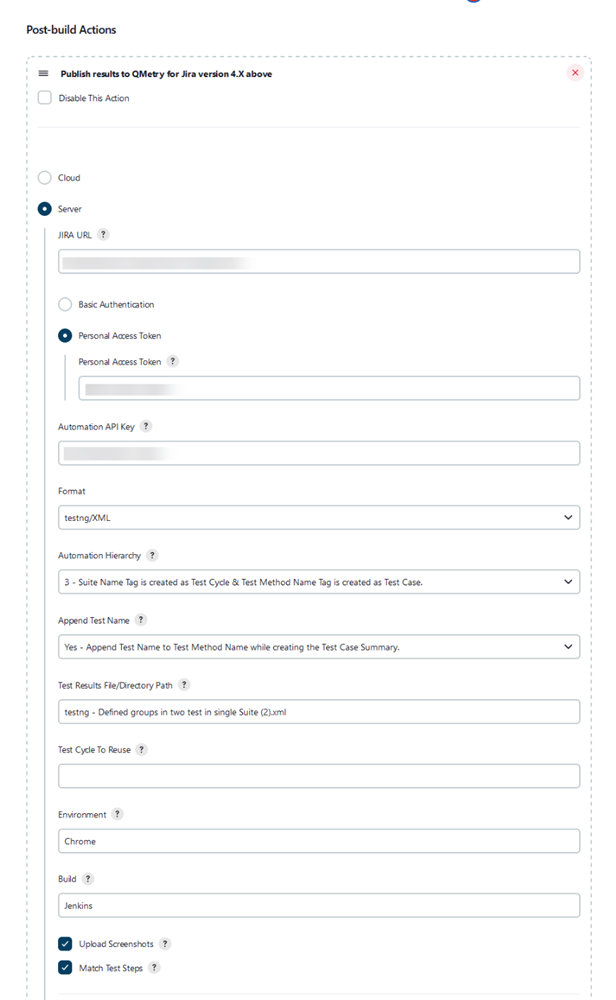
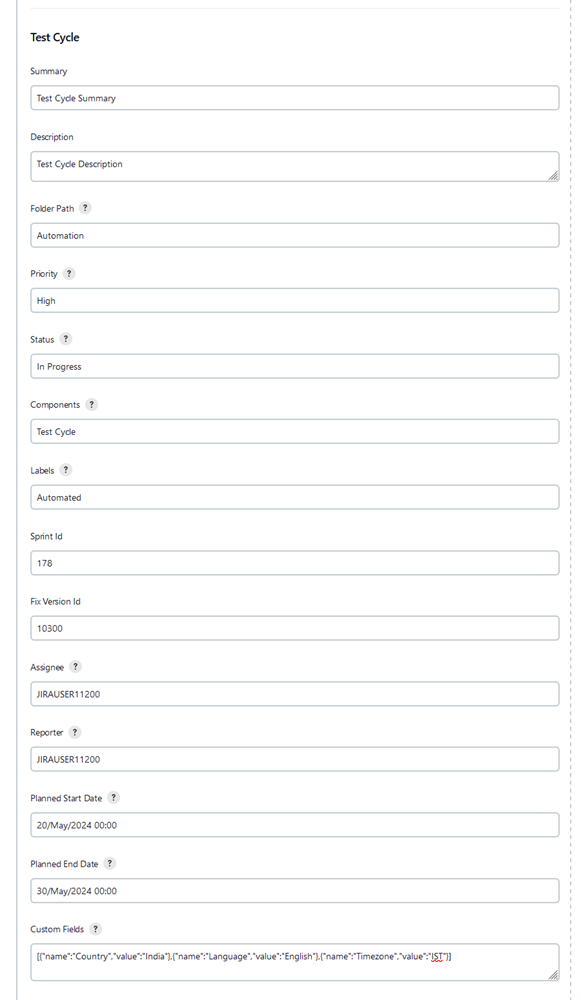
Test Cycle Fields
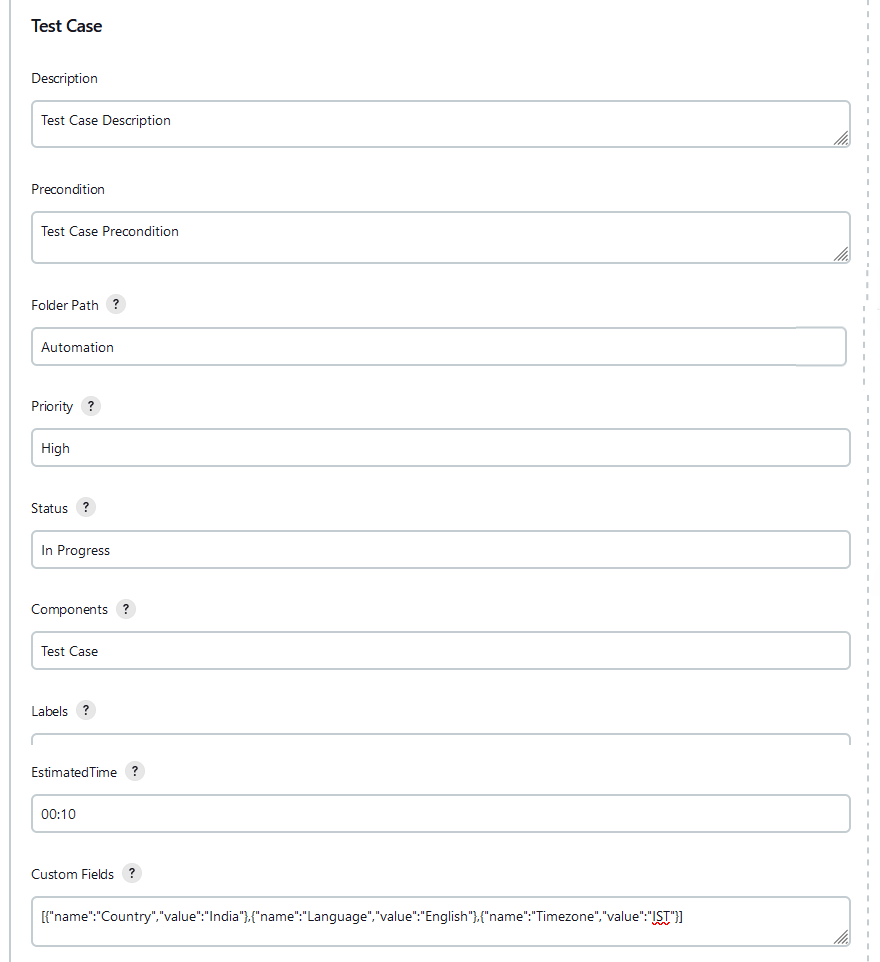
Test Case Fields
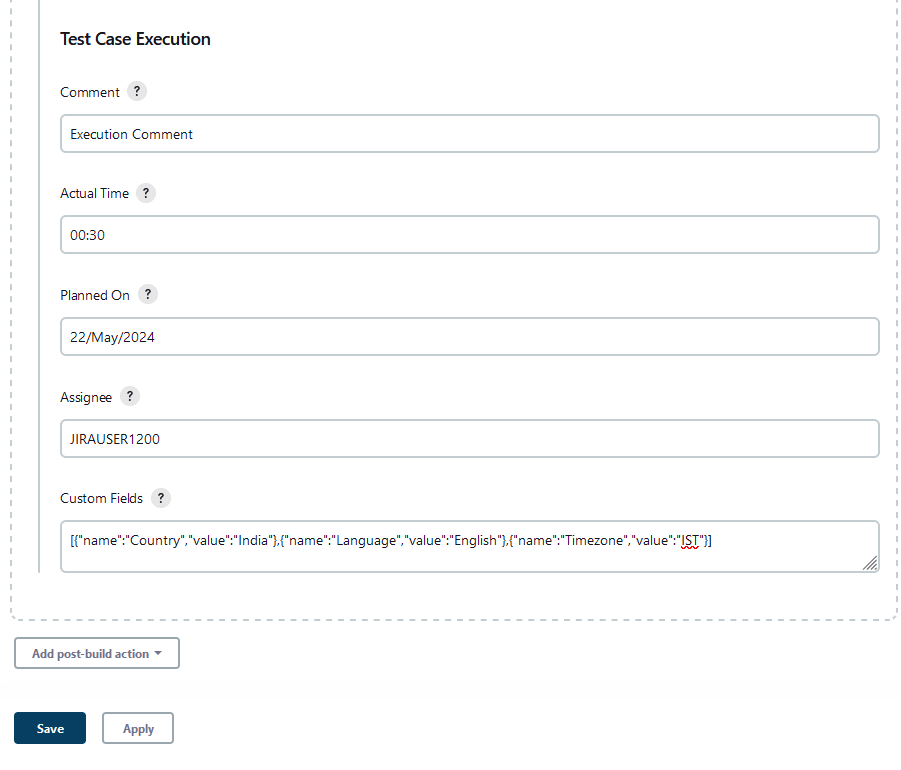
Test Case Execution Fields
Parameters for Server instance
Parameter | Type | Required | Description | |
Jira URL | string | Yes | Enter Jira URL. | |
Basic Authentication OR Personal Access Token | string | Yes | Basic Authentication Basic authentication with Jira's credentials.
| |
Personal Access Token If the Allow basic authentication on API calls option is disabled in Jira, then Personal Access Token is required for authentication. To generate a personal access token, perform the following steps:
| ||||
Automation API Key | string | Yes | Your API Key. API Key is unique for a specific user in a single project. The result is imported for the project associated with the given API Key. | |
Format | selection | Yes | Format of result file to be imported. Supported formats: cucumber/json testng/xml junit/xml QAF hpuft/xml specflow/json | |
Automation Hierarchy | selection | No |
| |
Append Test Name | selection | No | Applicable only for JUnit or TestNG frameworks automation result uploads with Hierarchy 2 or 3. Default Settings: It refers to QMetry > Automation > Automation API > Settings. Accepted Values = false (Default), true
NoteIf the Test Name or Test Suite Name length is more than 255 characters, the name is truncated. | |
File | string | Yes | Path to your result file to be uploaded. Example: The Jenkins plugin is expecting the file in Jenkins Workspace. If your workspace name is WithoutSouceCode, then find a folder name with WithoutSouceCode in your installation directory like Jenkins/Home/workspace/WithoutSouceCode. Your result file should be under The path that should be set in the plugin configuration is If your automation generates multiple result files of the supported format in a folder then provide the absolute path till the folder name(It should not be the path till workspace). QMetry plugin will zip all supported format files and upload them to QMetry. | |
Test Cycle To Reuse | string | No | Key of the test cycle to be reused. TestNG: Hierarchy 2: The Test Cycle To Resue will be ignored. Hierarchy 3: If the Test Cycle To Resue is provided, then the suite name in the files will be ignored. All the test case results for all suites and files will be uploaded in a single cycle, similar to Hierarchy 1 (default). JUnit: Hierarchy 2: The Test Cycle To Resue will be ignored. Hierarchy 3: If the Test Cycle To Resue is provided, then test case results for all suites and files will be uploaded in a single cycle. | |
Upload Screenshots | checkbox | No | Check to upload attachments in execution. Default value: false. | |
Match Test Steps | checkbox | No |
When the Test Cycle is not been Reused Create/Reuse a test case with a summary or test case key that exactly matches the automated test case uploaded through the result file, and exclude matching of test steps. The execution results of the test case will be imported or calculated based on the test case/step results from the automation result file. The execution result of the test case will be propagated to the test steps in the case of test case reuse/creation. Individual test case steps will not be matched and their execution results/details will not be picked from the result file. When the Test Cycle is been Reused When the Test Case Key is mapped in the result file and the Test Case Key is found linked to the Test Cycle. The existing linked test case version, which is part of the Test Cycle will be used. If multiple versions of the same test case key are linked to the test cycle, the one which traced first will be used. The test steps will not be matched to create a new version or link a different version. When the Test Case Key is mapped in the result file and the Test Case Key is not linked to the Test Cycle and the Test Case Key exists in the Test Case Library. The existing latest version of the test case that matches based on the test case summary will be linked to the existing Test Cycle. If there are multiple test cases with the same summary exist, the one that is traced first will be linked to the existing Test Cycle. The test steps will not be matched to create a new version or link a different version. In a project where propagation is off, the status of the step will not be mapped/changed. When the Test Case Key is mapped in the result file and the Test Case Key is not found linked to the Test Cycle and the Test Case Key is not found in the Test Case Library, and the Test Case Summary matches with any existing test cases linked to the Test Cycle. The existing linked Test Case version which is part of the Test Cycle will be used. The test steps will not be matched to create a new version. The Test Case Key is not mentioned in the result file and the Test Case Summary matches any existing test case that is already linked to the Test Cycle. The existing linked Test Case version which is part of the Test Cycle will be used based on the summary. The test steps will not be matched to create a new version. When the Test Case Key is mapped in the result file and the Test Case Key does not exist in the Test Cycle OR is Not found in Library and the Test Case Summary also does not match any existing Test case in the Test Cycle andTest Case with the same summary isfound in the Test Case Library. The existing latest version of the test case that matches based on the test case summary will be linked to the existing Test Cycle. If there are multiple test cases with the same summary exist, the one that is traced first will be linked to the existing Test Cycle. The test steps will not be matched to create a new version or link a different version. When the Test Case Key is mapped in the result file and the Test Case Key does not exist in the Test Cycle OR is Not found in the Library and the Test Case Summary also does not match any existing Test case in the Test Cycle OR is not found in the Test Case Library. A new test case without steps will be created and will be linked to the Test Cycle being reused. The execution results of the test case will be imported or calculated based on the test case/step results from the automation result file. The execution result of the test case will be propagated to the test steps in the case of test case reuse/creation. Individual test case steps will not be matched and their execution results/details will not be picked from the result file. In a project where propagation is off, the status of the step will not be mapped or changed. | |
Environment | string | No | Name of the environment on which the test cycle has to be executed. | |
Build | string | No | Name of the build for test cycle execution. |
Test Case, Test Cycle Fields and Test Case Execution Fields | |||
Parameter | Type | Required | Description |
Summary (only for Test Cycle) | string | No | Summary of the test cycle |
Description | string | No | Description of test case/test cycle |
Folder Path | string | No | Folder path to organize test cases and test cycles |
Priority | string | No | Priority to be added to the test case/test cycle |
Status | string | No | Status to be added to the test case/test cycle |
Components | string | No | Comma-separated names of Components to be added to the test case/test cycle |
Labels | string | No | Comma-separated names of Labels to be added to the test case/test cycle |
Fix Version Id | number | No | Id of Fix Version to be added to the test case/test cycle |
Sprint Id | number | No | Id of Sprint to be added to the test case/test cycle |
Assignee | string | No | Account Key of the current user for test case/test cycle/test cycle execution assignee |
Reporter | string | No | Account Key of the current user for test case/test cycle |
Precondition (only for Test Case) | string | No | Precondition for the test case. |
Estimated Time (only for Test Case) | string | No | Estimated time for test case in ‘HH:mm’ format |
Planned Start Date (only for Test Cycle) | string | No | Planned Start Date of test cycle in 'dd/MMM/yyyy HH:mm' format |
Planned End Date (only for Test Cycle) | string | No | Planned End Date of test cycle in 'dd/MMM/yyyy HH:mm' format |
Custom Fields | array | No | Comma-separated custom fields in JSON array |
Comment (only for Test Case Execution) | string | No | Test Case Execution Comment |
Actual Time (only for Test Case Execution) | string | No | Actual time for test case execution in ‘HH:mm’ format |
Planned On | string | No | Planned Execution Date in 'dd/MMM/yyyy' format |
Pipeline
QMetry Test Management supports Jenkins Pipeline for implementing and integrating continuous delivery pipelines into Jenkins.
Perform the followng steps to create a standard Pipeline job in Jenkins.
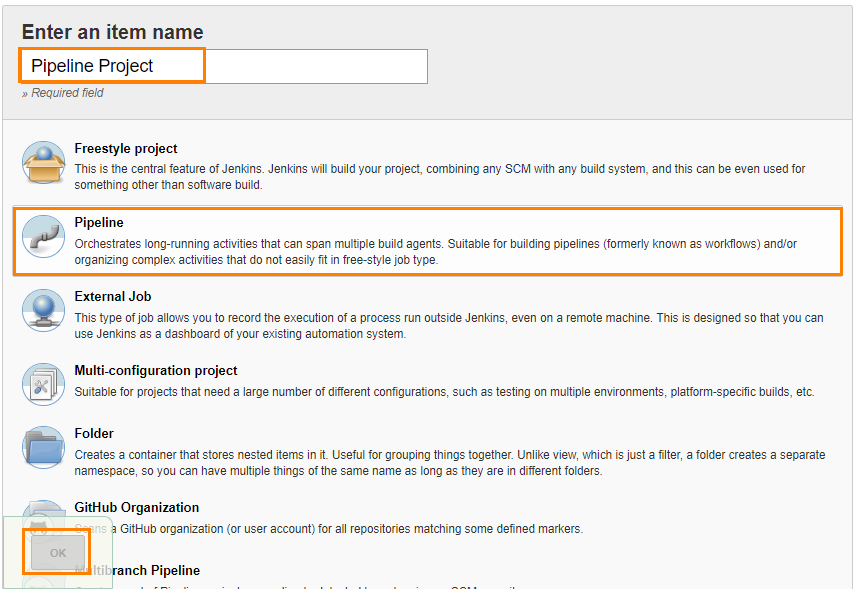
To create a new Jenkins job, click on the New Item option on the Jenkins menu.
Enter a name for your job.
Select Pipeline on the screen and then click OK.
The configuration page appears where you can configure your job by various categories: General, Build Triggers, Advanced Project Options, and Pipeline.
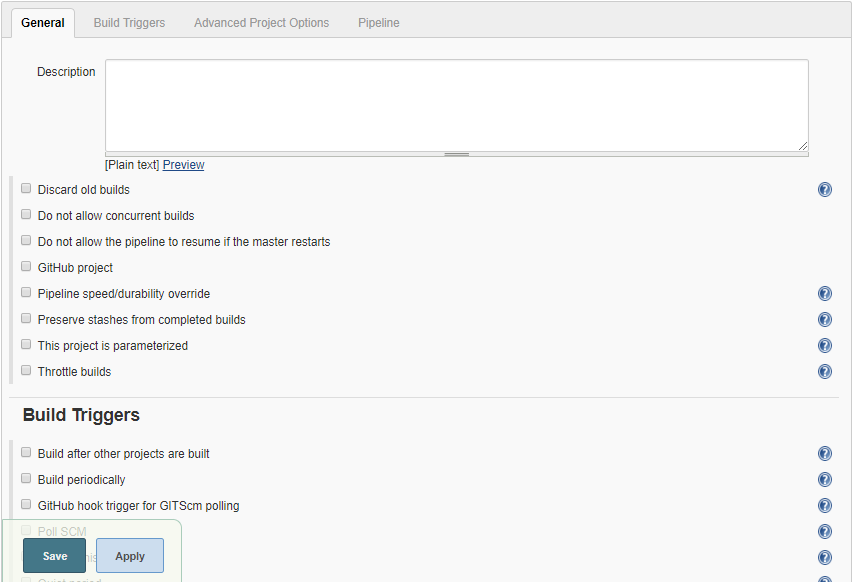
Optionally, you can set Build Triggers. Select the Build Triggers tab. Add a periodic trigger that triggers a build every minute, every hour, every day (for example, Schedule: * * * * *).
Advanced Project Options: This is optional. Provide a Display Name to replace the name you gave earlier to the Pipeline project.
Jenkins works as a bridge between QMetry Test Management and automation frameworks. To publish results in QMetry, provide a Pipeline script. Enter the Pipeline script to define your code repository, generate test results, and upload test results into QMetry Test Management.
Code Snippet for Cloud: QMetry for Jira v4.0 and above
Pipeline Script
stage('Upload Result to QTM4J cloud V4'){ step([$class: 'TestReportDeployPublisherCloudV4', testToRun: 'CLOUD', region:'USA', apikey: 'a518c3dd80791930bb0045eae80421cafe3378acb315092d1', format: 'cucumber/json', file: 'cucumber.json', automationHierarchy: "2", appendTestName: "true", testCycleToReuse: "", environment: "Firefox", build: "1.0.0", attachFile: true, matchTestSteps: true, testCycleSummary: "Basic mode testing", testCycleDescription: "Unit testing", testCycleFolderId: "1234", testCycleLabels: "v8.2.1", testCycleComponents: "FitBit", testCyclePriority: "High", testCycleStatus: "To Do", testCycleSprintId: "10", testCycleFixVersionId: "10300", testCycleAssignee: "5caaf8b3307b0637cbbdb03c", testCycleReporter: "5caaf8b3307b0637cbbdb03c", testCycleStartDate: "15/May/2020 00:00", testCycleEndDate: "30/May/2020 00:00", testCycleCustomFields: '[{"name": "Country", "value": "India"}, {"name": "Language", "value": "English"}, {"name": "TimeZone", "value": "IST"}]', testCaseDescription: "Verify the login page", testCasePrecondition: "Login with valid user details", testCaseFolderId: "98765", testCaseLabels: "v8.2.1", testCaseComponents: "FitBit", testCasePriority: "High", testCaseStatus: "To Do", testCaseSprintId: "10", testCaseFixVersionId: "10300", testCaseAssignee: "5caaf8b3307b0637cbbdb03c", testCaseReporter:"5caaf8b3307b0637cbbdb03c", testCaseEstimatedTime: "10:10:10", testCaseCustomFields: '[{"name": "Country", "value": "India"}, {"name": "Language", "value": "English"}, {"name": "TimeZone", "value": "IST"}]', testCaseExecutionComment: "Pipeline Comment testing", testCaseExecutionActualTime: "11:11:11", testCaseExecutionPlannedDate: "01/Jan/2024", testCaseExecutionAssignee: "5caaf8b3307b0637cbbdb03c", testCaseExecutionCustomFields: '[{"name": "Country", "value": "India"}, {"name": "Language", "value": "English"}, {"name": "TimeZone", "value": "IST"}]'])}Code Snippet for Server: QMetry for Jira v4.0 and above
Pipeline Script
Basic Authentication:
stage('Upload Result to QTM4J server V4'){ step([$class: 'TestReportDeployPublisherCloudV4', jiraUrlServer: 'http://qtm4jpostgres.qmetry.com:8080/', serverAuthenticationType:'BASICAUTH', username: 'admin', password: hudson.util.Secret.fromString('john123#'), testToRun: 'SERVER', apikeyServer: 'bc851b65c4224984f36d5f31327b4985d1a68d9e8', formatServer: 'junit/xml', fileServer: 'junit.xml', automationHierarchyServer: "2", appendTestNameServer: "true", testCycleToReuseServer: "", attachFileServer: true, matchTestStepsServer: true, environmentServer: "Firefox", buildServer: "1.0.0", testCycleSummaryServer: "Basic mode testing", testCycleDescriptionServer: "Unit testing", testCycleFolderPathServer:"F1/F2/F3", testCycleLabelsServer: "v8.2.1", testCycleComponentsServer: "FitBit", testCyclePriorityServer: "High", testCycleStatusServer: "To Do", testCycleSprintIdServer: "63", testCycleFixVersionIdServer: "10909", testCycleAssigneeServer: "JIRAUSER11200", testCycleReporterServer: "JIRAUSER11200", testCycleStartDateServer: "15/May/2020 00:00", testCycleEndDateServer: "30/May/2020 00:00", testCycleCustomFieldsServer: '[{"name": "Country", "value": "India"}, {"name": "Language", "value": "English"}, {"name": "TimeZone", "value": "IST"}]', testCaseDescriptionServer: "Verify the login page", testCasePreconditionServer:"The user should be registered", testCaseFolderPathServer:"F1/F2/F3", testCaseLabelsServer: "v8.2.1", testCaseComponentsServer: "FitBit", testCasePriorityServer: "High", testCaseStatusServer: "To Do", testCaseSprintIdServer: "63", testCaseFixVersionIdServer: "10910", testCaseAssigneeServer: "JIRAUSER11200", testCaseReporterServer:"JIRAUSER11200", testCaseEstimatedTimeServer: "10:10", testCaseCustomFieldsServer: '[{"name": "Country", "value": "India"}, {"name": "Language", "value": "English"}, {"name": "TimeZone", "value": "IST"}]', testCaseExecutionCommentServer: "Pipeline Comment testing", testCaseExecutionActualTimeServer: "11:11", testCaseExecutionPlannedDateServer: "01/Jan/2024", testCaseExecutionAssigneeServer: "JIRAUSER10100", testCaseExecutionCustomFieldsServer: '[{"name": "Country", "value": "India"}, {"name": "Language", "value": "English"}, {"name": "TimeZone", "value": "IST"}]'])}Token Authentication:
stage('Upload Result to QTM4J server V4'){ step([$class: 'TestReportDeployPublisherCloudV4', jiraUrlServer: 'http://qtm4jpostgres.qmetry.com:8080/', serverAuthenticationType:'TOKENAUTH', personalAccessToken:'NDY2OTIyOxkzOg17rGUmpZPMdFtGyWdDHX', testToRun: 'SERVER', apikeyServer: 'bc851b65c42259f4846d9e5f8931327b985d1a8', formatServer: 'junit/xml', fileServer: 'junit.xml', automationHierarchyServer: "2", appendTestNameServer: "true", testCycleToReuseServer: "", attachFileServer: true, matchTestStepsServer: true, environmentServer: "Firefox", buildServer: "1.0.0", testCycleSummaryServer: "Basic mode testing", testCycleDescriptionServer: "Unit testing", testCycleFolderPathServer:"F1/F2/F3", testCycleLabelsServer: "v8.2.1", testCycleComponentsServer: "FitBit", testCyclePriorityServer: "High", testCycleStatusServer: "To Do", testCycleSprintIdServer: "63", testCycleFixVersionIdServer: "10909", testCycleAssigneeServer: "JIRAUSER11200", testCycleReporterServer: "JIRAUSER11200", testCycleStartDateServer: "15/May/2020 00:00", testCycleEndDateServer: "30/May/2020 00:00", testCycleCustomFieldsServer: '[{"name": "Country", "value": "India"}, {"name": "Language", "value": "English"}, {"name": "TimeZone", "value": "IST"}]', testCaseDescriptionServer: "Verify the login page", testCasePreconditionServer:"The user should be registered", testCaseFolderPathServer:"F1/F2/F3", testCaseLabelsServer: "v8.2.1", testCaseComponentsServer: "FitBit", testCasePriorityServer: "High", testCaseStatusServer: "To Do", testCaseSprintIdServer: "63", testCaseFixVersionIdServer: "10910", testCaseAssigneeServer: "JIRAUSER11200", testCaseReporterServer:"JIRAUSER11200", testCaseEstimatedTimeServer: "10:10", testCaseCustomFieldsServer: '[{"name": "Country", "value": "India"}, {"name": "Language", "value": "English"}, {"name": "TimeZone", "value": "IST"}]', testCaseExecutionCommentServer: "Pipeline Comment testing", testCaseExecutionActualTimeServer: "11:11", testCaseExecutionPlannedDateServer: "01/Jan/2024", testCaseExecutionAssigneeServer: "JIRAUSER10100", testCaseExecutionCustomFieldsServer: '[{"name": "Country", "value": "India"}, {"name": "Language", "value": "English"}, {"name": "TimeZone", "value": "IST"}]'])}Tip
Reference link: Publish multiple framework test results from a single pipeline job.
Syntax of format:
cucumber/json
testng/xml
junit/xml
QAF
hpuft/xml
specflow/json
Parameters for Cloud
Parameter | Type | Required | Description |
API Key | string | Yes | Your API Key. API Key is unique for a specific user in a single project. The system imports the result for the project associated with the given API Key. |
Format | selection | Yes | Format of result file to be imported. Supported formats: cucumber/json testng/xml junit/xml QAF hpuft/xml specflow/json |
File | string | Yes | Path to your result file to be uploaded. Example : The Jenkins plugin is expecting the file in Jenkins Workspace. If your workspace name is WithoutSouceCode, then find a folder name with WithoutSouceCode in your installation directory like Jenkins/Home/workspace/WithoutSouceCode. Your result file should be under Jenkins/Home/workspace/WithoutSouceCode/Testng-result.xml. The path that should be set in plugin configuration is |
Test Cycle To Reuse | string | No | Key of the test cycle to be reused. |
Upload Screenshots | checkbox | No | Check to upload attachments in execution. Default value: false. |
Environment | string | No | Name of the environment on which the test cycle has to be executed. |
Build | string | No | Name of the build for test cycle execution. |
Test Case and Test Cycle Fields | |||
Parameter | Type | Required | Description |
Summary (only for Test Cycle) | string | No | Summary of test cycle. |
Description | string | No | Description of test case/test cycle. |
Priority | string | No | Priority to be added to the test case/test cycle. |
Status | string | No | Status to be added to the test case/test cycle. |
Components | string | No | Comma separated names of Components to be added to the test case/test cycle. |
Labels | string | No | Comma separated names of Labels to be added to the test case/test cycle. |
Fix Version Id | number | No | Id of Fix Version to be added to the test case/test cycle. |
Sprint Id | number | No | Id of Sprint to be added to the test case/test cycle. |
Assignee | string | No | Account Key of the current user for test case/test cycle. |
Reporter | string | No | Account Key of the current user for test case/test cycle. |
Precondition (only for Test Case) | string | No | Precondition for test case. |
Estimated Time (only for Test Case) | string | No | Estimated time for test case in ‘HH:mm’ format |
Planned Start Date (only for Test Cycle) | string | No | Planned Start Date of test cycle in 'dd/MMM/yyyy HH:mm' format. |
Planned End Date (only for Test Cycle) | string | No | Planned End Date of test cycle in 'dd/MMM/yyyy HH:mm' format. |
Custom Fields | string | No | Comma separated custom fields in JSON array. |
Parameters for Server Instance
Parameter | Type | Required | Description |
Jira URL | string | Yes | Enter Jira URL |
Basic Authentication OR Personal Access Token | string | Yes | Basic Authentication Basic authentication with Jira's credentials.
|
Personal Access Token If the Allow basic authentication on API calls option is disabled in Jira, then a Personal Access Token is required for authentication. To generate a personal access token, perform the following steps:
| |||
API Key | string | Yes | Your API Key. An API Key is unique for a specific user in a single project. The system imports the result for the project associated with the given API Key. |
Format | selection | Yes | Format of the result file to be imported. Supported formats:
|
File | string | Yes | Path to your result file to be uploaded. Example : The Jenkins plugin is expecting the file in Jenkins Workspace. If your workspace name is WithoutSouceCode, then find a folder name with WithoutSouceCode in your installation directory like Jenkins/Home/workspace/WithoutSouceCode. Your result file should be under Jenkins/Home/workspace/WithoutSouceCode/Testng-result.xml. The path that should be set in plugin configuration is |
Test Cycle To Reuse | string | No | Key of the test cycle to be reused. |
Upload Screenshots | checkbox | No | Check to upload attachments in execution. Default value: false. |
Match Test Steps | checkbox | No |
When the Test Cycle is not been Reused Create/Reuse a test case with a summary or test case key that exactly matches the automated test case uploaded through the result file, and exclude matching of test steps. The execution results of the test case will be imported or calculated based on the test case/step results from the automation result file. The execution result of the test case will be propagated to the test steps in the case of test case reuse/creation. Individual test case steps will not be matched and their execution results/details will not be picked from the result file. When the Test Cycle is been Reused When the Test Case Key is mapped in the result file and the Test Case Key is found linked to the Test Cycle. The existing linked test case version, which is part of the Test Cycle will be used. If multiple versions of the same test case key are linked to the test cycle, the one which traced first will be used. The test steps will not be matched to create a new version or link a different version. When the Test Case Key is mapped in the result file and the Test Case Key is not linked to the Test Cycle and the Test Case Key exists in the Test Case Library. The existing latest version of the test case that matches based on the test case summary will be linked to the existing Test Cycle. If there are multiple test cases with the same summary exist, the one which is traced first will be linked to the existing Test Cycle. The test steps will not be matched to create a new version or link a different version. In a project where propagation is off, the status of the step will not be mapped/changed. When the Test Case Key is mapped in the result file and the Test Case Key is not found linked to the Test Cycle and the Test Case Key is not found in the Test Case Library, and the Test Case Summary matches with any existing test cases linked to the Test Cycle. The existing linked Test Case version which is part of the Test Cycle will be used. The test steps will not be matched to create a new version. The Test Case Key is not mentioned in the result file and the Test Case Summary matches any existing test case that is already linked to the Test Cycle. The existing linked Test Case version which is part of the Test Cycle will be used based on the summary. The test steps will not be matched to create a new version. When the Test Case Key is mapped in the result file and the Test Case Key does not exist in the Test Cycle OR is Not found in Library and the Test Case Summary also does not match any existing Test case in the Test Cycle andTest Case with the same summary isfound in the Test Case Library. The existing latest version of the test case that matches based on the test case summary will be linked to the existing Test Cycle. If there are multiple test cases with the same summary exist, the one that is traced first will be linked to the existing Test Cycle. The test steps will not be matched to create a new version or link a different version. When the Test Case Key is mapped in the result file and the Test Case Key does not exist in the Test Cycle OR is Not found in the Library and the Test Case Summary also does not match any existing Test case in the Test Cycle OR is not found in the Test Case Library. A new test case without steps will be created and will be linked to the Test Cycle being reused. The execution results of the test case will be imported or calculated based on the test case/step results from the automation result file. The execution result of the test case will be propagated to the test steps in the case of test case reuse/creation. Individual test case steps will not be matched and their execution results/details will not be picked from the result file. In a project where propagation is off, the status of the step will not be mapped or changed. |
Environment | string | No | Name of the environment on which test cycle has to be executed. |
Build | string | No | Name of the build for test cycle execution. |
Test Case and Test Cycle Fields | |||
Parameter | Type | Required | Description |
Summary (only for Test Cycle) | string | No | Summary of test cycle. |
Description | string | No | Description of test case/test cycle. |
Priority | string | No | Priority to be added to the test case/test cycle. |
Status | string | No | Status to be added to the test case/test cycle. |
Components | string | No | Comma separated names of Components to be added to the test case/test cycle. |
Labels | string | No | Comma separated names of Labels to be added to the test case/test cycle. |
Fix Version Id | number | No | Id of Fix Version to be added to the test case/test cycle. |
Sprint Id | number | No | Id of Sprint to be added to the test case/test cycle. |
Assignee | string | No | Account Key of the current user for test case/test cycle. |
Reporter | string | No | Account Key of the current user for test case/test cycle. |
Precondition (only for Test Case) | string | No | Precondition for the test case. |
Estimated Time (only for Test Case) | string | No | Estimated time for test case in ‘HH:mm’ format |
Planned Start Date (only for Test Cycle) | string | No | Planned Start Date of test cycle in 'dd/MMM/yyyy HH:mm' format |
Planned End Date (only for Test Cycle) | string | No | Planned End Date of test cycle in 'dd/MMM/yyyy HH:mm' format |
Custom Fields | string | No | Comma separated custom fields in JSON array. |
On successful completion of the process,
Check the console output, which displays a success message for uploading the result file.
Finally check the test execution page in QMetry Test Management for Jira and review your test run results.